


Windows Key and What Copies Text? Essential Shortcuts Guide
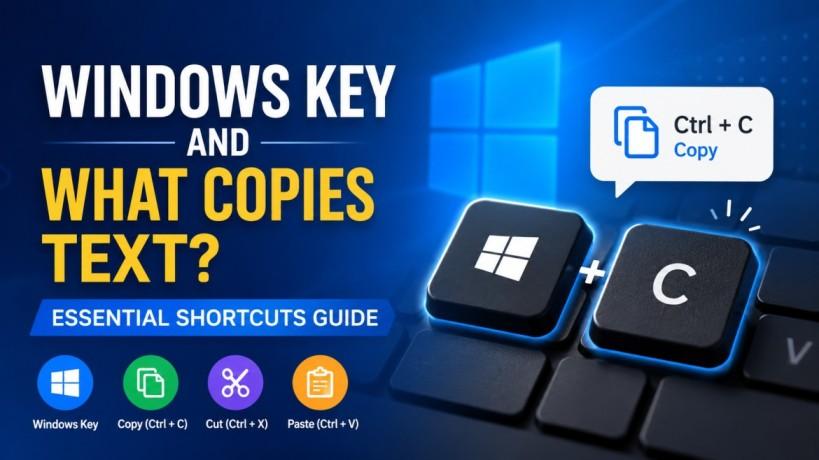
Mastering your keyboard is the fastest way to increase professional output. While most users are familiar with the standard mouse-click method, understanding the Windows key and what copies text can transform your digital workflow. This guide breaks down the essential combinations, hidden features like Clipboard History, and how to manage multiple snippets of information at once.
Understanding the Windows Key and What Copies Text
In the Windows operating system, the Windows key (often labeled with the Microsoft logo) acts as a "modifier" that unlocks advanced system functions. While Ctrl + C is the universal command for a simple copy, the Windows key provides a more robust version of this action through the Clipboard History tool.
When you use the Windows key and what copies text logic, you are likely looking for Win + V. Unlike the standard copy-paste that only remembers the last item you grabbed, this shortcut opens a window showing everything you have copied recently, images, links, and text blocks alike.
The Standard Copy vs. the Advanced Clipboard
To understand why the Windows key and the copy text query are so popular, we have to look at the evolution of Windows.
-
Standard Copy (Ctrl + C): This stores one item. If you copy something else, the first item is gone forever.
-
Advanced Clipboard (Win + V): This allows you to "pin" important text and access a list of your last 25 copied items.
How to Enable and Use Clipboard History
If you press the Windows key and the "V" key for the first time, you might see a prompt asking you to "Turn on" the feature. This is a crucial step for anyone managing high-volume digital content or technical documentation.
Steps to Activate Clipboard History
-
Press Win + V on your keyboard.
-
Click the Turn On button in the pop-up window.
-
Start copying text as you normally would using Ctrl + C.
-
Whenever you need to see your history, press Win + V again and select the snippet you want to paste.
Using the Windows key and what copies text shortcut ensures that you never lose a piece of information simply because you forgot to paste it before copying something else.
Key Shortcuts for Efficient Text Management
Beyond the primary Windows key and what copies text functionality, there are several other shortcuts that every professional should have in their repertoire. Using these in tandem with the Windows key shortcuts creates a seamless environment for data entry and content creation.
|
Action |
Keyboard Shortcut |
|
Standard Copy |
Ctrl + C |
|
Advanced Clipboard History |
Win + V |
|
Paste Without Formatting |
Ctrl + Shift + V |
|
Select All Text |
Ctrl + A |
|
Cut Text |
Ctrl + X |
Why Pinned Items Matter
In the Clipboard History menu (accessed via the Windows key and what copies text shortcut), you will notice a small "pin" icon next to each entry. If you have a specific piece of text, like a bio, a disclaimer, or a technical specification that you use repeatedly, pinning it ensures it stays in your history even after you clear your clipboard or restart your computer.
Troubleshooting Common Shortcut Issues
Sometimes, pressing the Windows key and what copies text combination doesn't result in the expected pop-up. This is often due to system settings or background software interference.
Check Your System Settings
If Win + V isn't working, navigate to Settings > System > Clipboard. Ensure that the toggle for "Clipboard history" is set to "On." If you are working across multiple devices, you can also enable "Sync across devices" to see your copied text on your laptop and desktop simultaneously.
Software Interference
Occasionally, third-party macro software or specialized gaming keyboards can remap the Windows key. If the Windows key and the shortcut to copy text are failing, try disabling any keyboard customization software to see if the default Windows functionality returns.
Advanced Tips for SEO and Content Strategists
For those in digital marketing, the Windows key and what copies text feature is a lifesaver for managing metadata, alt text, and keyword lists. Instead of switching tabs 50 times to copy 50 different meta descriptions, you can copy them all in one go and then paste them sequentially from the Win + V menu.
This "batch copying" method reduces the mental load of repetitive tasks and allows you to focus on the quality of the content rather than the mechanics of moving text around.
FAQs
Do the Windows key and what copies text work on Windows 10?
Yes, Clipboard History was introduced in Windows 10 (version 1809). If you are on an older version, you may need to update your OS to use this feature.
Can I copy images using the Windows key shortcuts?
Absolutely. The Win + V menu stores both text and images (less than 4MB in size), making it easy to move graphics between documents.
Is my clipboard history private?
Clipboard history is stored locally on your machine. However, if you enable "Sync across devices," your data is sent to Microsoft's servers to be shared with your other logged-in devices. You can clear your history at any time through the Win + V menu.
How do I clear my clipboard history?
Open the clipboard by pressing the Windows key and what copies text shortcut (Win + V), and click "Clear all" at the top of the window.
Conclusion
Understanding the Windows key and what copies text functionality is more than just a neat trick; it is a fundamental skill for the modern professional. By leveraging Win + V and the Clipboard History settings, you can protect your data from accidental overwrites and speed up your daily tasks significantly.
If you are looking for more ways to optimize your digital workspace or need help with professional IT management, feel free to contact us for expert consultation and support.
Nach Verein filtern
Read More
QuickBooks Desktop 2023 discontinued news has become a major concern for businesses that rely on QuickBooks Desktop for bookkeeping, payroll processing, invoicing, and financial reporting. Many users are now searching for information about how the QuickBooks Desktop 2023 discontinued announcement may affect daily accounting operations, security updates, and software functionality. Since...

Metal Gate Hinges are an important part of many outdoor entrance systems, helping doors and gates maintain steady movement during daily operation. Outdoor applications often face rain, dust, sunlight, and temperature changes, which means product design and manufacturing processes need careful attention. Buyers usually consider material selection, structure, production accuracy, and maintenance...

Polaris Market Research has published a brand-new report titled Automotive Wrap Films Market Share, Size, Trends & Industry Analysis Report By Type (Calendered Vinyl, Cast Vinyl); By Application Method; By Film Finish; By Application; By End-Use; By Region; Segment Forecast, 2025 - 2034 that includes extensive information and analysis of the industry dynamics. The opportunities...

Market Overview: According to IMARC Group's latest research publication, "Railway Cyber Security Market: Global Industry Trends, Share, Size, Growth, Opportunity and Forecast 2025-2033", The global railway cyber security market size reached USD 8.0 Billion in 2024. Looking forward, IMARC Group expects the market to reach USD 16.0 Billion by 2033, exhibiting a...

La Evolución del Juego Online en España El sector del juego digital ha experimentado un crecimiento constante durante los últimos años. Los mejores casinos online en España han mejorado sus servicios casino online para ofrecer experiencias más seguras y atractivas. Gracias a la innovación tecnológica, los usuarios pueden disfrutar de una...
