


How to Diagnose & Repair a PC Power Supply in 5 Easy Steps
Your PC’s power supply unit (PSU) is the unsung hero of your entire PC setup. From a consistent flow of electricity to keep your components running smoothly and everything in between, the PSU keeps you intact! But what happens when it just crashes unexpectedly? The first thought that jumps to mind is to look for a reliable PC power supply repair service at affordable prices!
From random shutdowns to a computer refusing to turn on, power-related issues can leave you scratching your head. The good news? You don’t always need to replace it immediately. With the right tools and some expert guidance, you can diagnose and repair PC power supply unit on your own.
This guide will walk you through five simple steps that combine troubleshooting and smart PSU repairs without any expensive costs to align your system like before!
Why Power Supply PC Repairs Are In Trend Nowadays?
If you jump inside a PC power supply, a lot is going on!
Behind the sleek PC exterior, the power supply unit (PSU) takes up the electricity from your wall socket. It then turns into usable power for your PC. Without a working computer supply, your PC will not boot up or may even damage other hardware components. Simply, a faulty power supply can lead to:
-
Random shutdowns/reboots.
-
Incorrect voltages turn the CPU, GPU, or motherboard performance down.
-
A sudden loss of power can be a productivity nightmare for you.
Step 1: Spot Out All Symptoms of a Faulty Power Supply
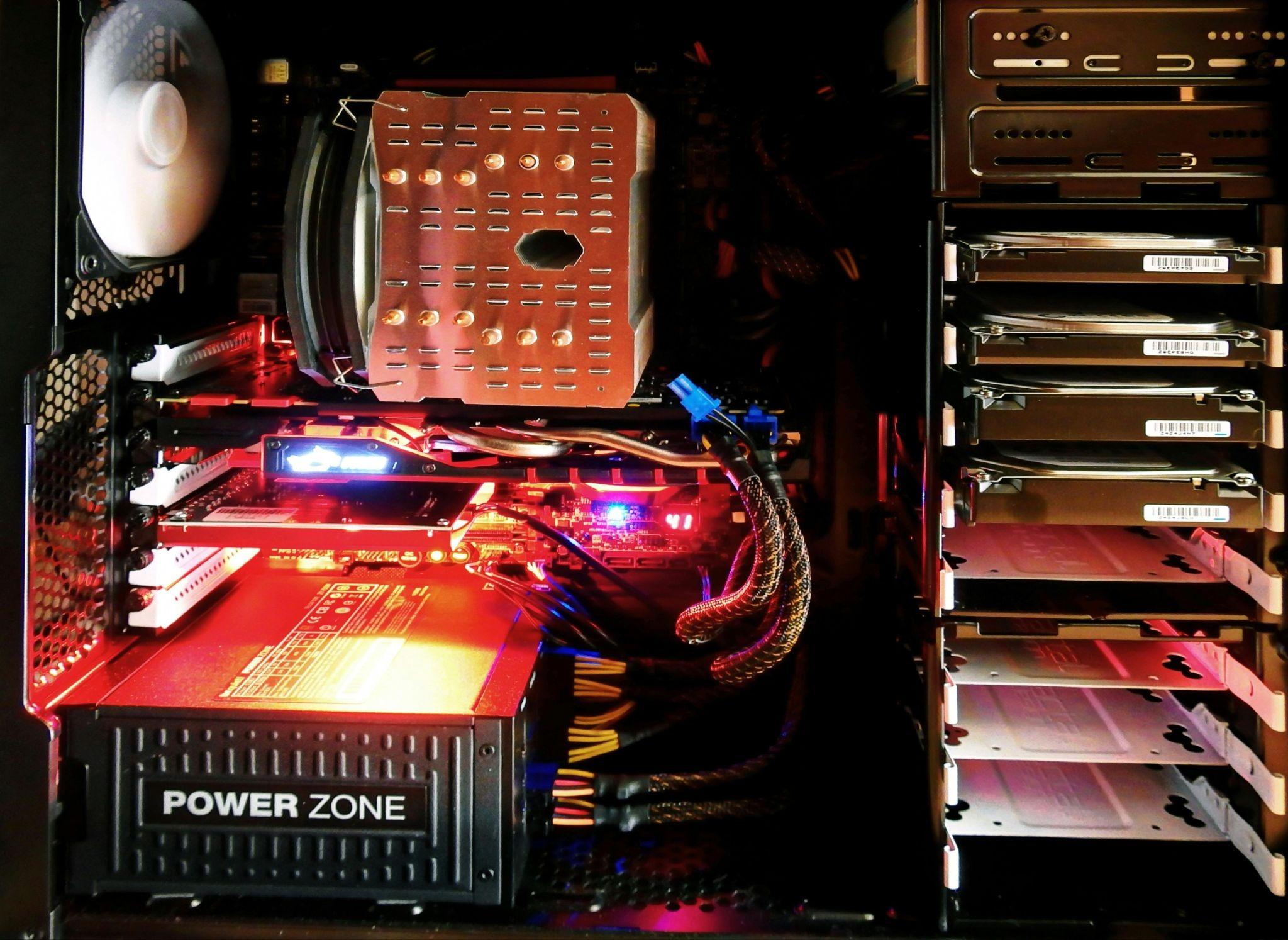
Before jumping into tools, the first step of PC power supply repair service is the RIGHT DIAGNOSIS! Whether you're a beginner or expert PC repair technician, keep an eye on all the possible warning signs linked to power supply problems:
-
Your computer doesn’t turn on. No matter how hard you press the power button.
-
Fans and drives fail to spin, leading to a lack of +12V.
-
Intermittent crashes, shutdowns, or reboots.
-
Burning smells/flickering power indicators on the case.
Is your laptop/gaming PC/computer showing any of these signs? Time to dig deeper so you can avoid expensive pc power supply repair costs at some random local computer repair shops in your area.
Step 2: Visual Inspection Creates a Clear Picture
A visual inspection is the key to revealing all the hidden culprits, often revealing the extent of PC damage. There's a list of some visual indicators that suggest physical damage. Here’s what to look for:
-
Capacitors bulging or leaking fluids mean something is wrong with the power supply.
-
Look for broken power cables, melted insulation, or corrosion.
-
Dark patches on the power cables or connectors indicate overheating.
-
Many PSUs have an internal fuse. Although they protect the PSU, you must replace them if they burn out.
Step 3: Test the Power Output Immediately
It’s important to test the power output of your PSU as soon as you can. This will help determine if it is indeed the source of your problem. To do this, you’ll need a multimeter and a spare computer fan. Here’s how to test the power supply output:
-
Unplug the PSU from all devices.
-
Connect the positive (red) lead of your multimeter to one of the yellow wires on the 24-pin motherboard connector.
-
Connect the negative (black) lead to any black wire on the same connector.
-
Turn on your PSU by flipping its switch or pressing its power button.
-
Read the voltage displayed on your multimeter and compare it
To determine if the power supply unit is working, step into testing mode. Here’s how:
-
Unplug the PSU: Safety first. Turn off the PSU switch and unplug it from the outlet.
-
Use a digital multimeter: Set it to DC voltage mode and measure across the PSU connectors: the red lead to any yellow wire on the 24-pin power connector, and the black lead to any black wire. The reading should be:
-
Yellow Wire to Black Wire (12V Rail): Should read +12V.
-
Red Wire to Black Wire (5V Rail): Should read +5V.
-
Orange Wire to Black Wire (3.3V Rail): Should read +3.3V.
-
Check for noise or ripple voltage: If there is more than a one-tenth of a volt (0.1V) of AC ripple, your PSU might be in danger right now.
-
Test each power supply rail: Repeat Step 3 with every color wire you can find on every plug coming from your PSU.
If any voltage is far off from these reference values, your PSU is likely faulty. With no multimeter? You can use a power supply tester, available for cheap online. This device simulates a load and flags any possible issues with your power lines through LEDs.
Step 4: Identify the Crook for Accurate PC Power Supply Repair Service
Diagnosing your faulty PSU doesn’t always have to mean replacing it outright. Identifying and replacing damaged parts can save an expensive pc power supply repair service. Have spare parts like transistors and capacitors from a previous repair kit, or purchase them online to save some time. Focus on:
-
The cooling fan: A stuck fan will cause overheating, leading to PSU failure. Test it with an external power source or spin it manually.
-
Switching transistors: Use a soldering iron to detach key transistors from your PSU PCB. Check for continuity and replace if they fail.
-
Capacitors: A dead electrolytic capacitor causes ripple voltage issues. Modern guides recommend using low-ESR capacitors for replacements.
Step 5: Repair + Reassemble = A Healthy PSU
If your PC power supply repair cost adds up to less than buying a brand-new PSU. Congratulate yourself on a job well done! Time to pop it back into your setup. Ensure all connections inside are solid. Double-check that wiring paths are clear of any moving fans. Before connecting it back to your PC, do another voltage test for assurance.
Final Thoughts
Diagnostics and repair PC power supply units doesn’t have to be rocket science. With the right tools, a clear picture of the steps outlined above, and some patience, you can handle PSU problems like a pro. B
If you’re still unsure about tackling PSU repairs yourself or worried about how to repair power supply, consult a trusted repair service shop like Eastern Laptop Repair in Las Vegas for additional support. Looking to supercharge your DIY repair skills? Start taking control of your PC’s performance today!
Categorias
Leia mais
Healthy, glowing skin is often associated with youth, confidence, and proper skincare. However, many people struggle with dullness, uneven texture, clogged pores, and a lackluster complexion. One of the most effective ways to restore brightness and maintain healthy skin is through exfoliation. This essential skincare practice removes dead skin cells from the surface, allowing fresh,...

NMIMS Solved Assignment: The Ultimate Academic Support Solution for NMIMS Students Meta Description: Looking for reliable NMIMS Solved Assignment solutions? Discover how SolveZone helps NMIMS students with high-quality assignment support, expert guidance, and timely academic assistance. What is an NMIMS Solved Assignment? Assignments play a crucial role in the academic evaluation process of...

According to the latest report published by Data Bridge Market Research, the Flat Panel Displays Market CAGR Value The Global Flat Panel Displays Market Size was valued at USD 167.4 Billion in 2024 and is expected to reach USD 290.0 Billion by 2032, at a CAGR of 8.2% during the forecast period The persuasive Flat Panel Displays...

When it comes to securing heavy loads, retractable ratchet straps UK have become an essential tool for both professionals and everyday users. Whether you’re transporting goods, motorcycles, or furniture, these straps offer strength, reliability, and convenience that traditional tie-down methods often lack. Their retractable mechanism ensures quick setup, tangle-free storage, and...

According to the latest report published by Data Bridge Market Research, the Europe Melanoma Cancer Diagnostics Market The Europe melanoma cancer diagnostics market size was valued at USD 1.55 billion in 2024 and is expected to reach USD 2.59 billion by 2032, at a CAGR of 6.6% during the forecast period The world-class Europe Melanoma Cancer Diagnostics...