Why Does My MacBook Battery Drain Overnight Without Use?
Leaving your MacBook closed and untouched overnight only to find the battery dropped 20 to 40 percent by morning is puzzling and inconvenient. MacBooks are designed to consume minimal power while sleeping, so significant overnight drain usually points to something preventing proper sleep behavior.
Power Nap, a macOS feature that allows your MacBook to periodically wake and perform background tasks like email sync, iCloud updates, and Time Machine backups, is a common cause of overnight battery consumption. Apps that prevent your Mac from entering deep sleep by keeping background processes active are another frequent culprit. Corrupted system files or a pending macOS update that runs background processes at night can also cause unexpected drain. Older MacBooks with degraded batteries experience faster self-discharge overnight simply due to reduced battery capacity.
Start by checking what's preventing proper sleep. Open Terminal and type "pmset -g assertions" to see if any process is actively blocking sleep. You can also open Activity Monitor, go to the Energy tab, and review which apps have been preventing sleep in recent hours.
Adjust Power Nap settings by mustang303 going to System Settings > Battery, then clicking "Options" or looking for "Enable Power Nap." Turning this off prevents your Mac from waking overnight to sync and check for updates, which is often the largest contributor to overnight drain.
Check your login items and background apps. Go to System Settings > General > Login Items and remove any apps you don't need starting automatically. Apps like cloud sync tools, backup software, and communication apps can run significant background activity overnight.
Update macOS under System Settings > General > Software Update. Apple regularly releases fixes for battery drain and sleep issues, and keeping macOS current often resolves overnight drain that started after a previous update introduced a bug.
Close all apps and browser tabs before closing the lid at night rather than leaving them open. Browser tabs with active content, video calls left running, or downloads in progress can all prevent deep sleep even when the lid is closed.
Check your battery health under System Settings > Battery > Battery Health. If battery condition shows as "Service Recommended," your battery has degraded enough that even normal overnight self-discharge represents a significant percentage of its reduced total capacity.
Avoid keeping your MacBook near external heat sources like radiators or in direct sunlight when stored overnight, as elevated ambient temperature increases self-discharge rate, particularly in older batteries.
If Power Nap is disabled, login items are minimal, and your battery health is still reported as Normal, but overnight drain continues at 30 percent or more, reset your Mac's SMC (System Management Controller), as an SMC reset often resolves sleep behavior that appears correct in settings but isn't functioning properly at the hardware level. Instructions for your specific MacBook model are available on Apple's support page.
Most MacBook overnight drain comes down to Power Nap, background apps preventing proper sleep, or a degraded battery, all of which are identifiable and addressable without a trip to the repair shop.
Nach Verein filtern
Read More
78WIN is a reliable, innovative, and fast-growing online entertainment platform in Asia. It is part of the trusted OKVIP Alliance, known as one of the region’s top entertainment groups. With a strong reputation for quality service, smooth performance, and user satisfaction, 78WIN has become a preferred choice for many players. The platform focuses on providing a safe, enjoyable, and...

In a competitive marketplace, every interaction with a customer matters. A professionally designed business card, invitation card, loyalty card, or promotional card can instantly communicate credibility and professionalism. High-quality cards print solutions help businesses stand out in crowded industries, ensuring every card becomes a memorable marketing tool rather than just another piece of...

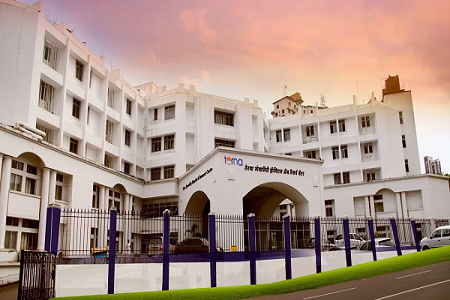
Expert Oncologists at Terna Hospital Terna Hospital is home to experienced oncology specialists dedicated to diagnosing and treating a wide range of cancers using modern medical advancements and evidence-based care. Dr. Suvarna KulkarniA highly qualified surgical oncologist with MBBS, MS (General Surgery), and MCh in Surgical Oncology from Tata Memorial Hospital, Dr. Kulkarni brings extensive...
Southern California is famous for beaches and sunshine, but tucked between Los Angeles and San Diego lies another treasure—Temecula Valley Wine Country. With rolling vineyards, award-winning wineries, and a relaxed atmosphere, Wine Tours Temecula have become one of the most popular experiences for locals and visitors alike. Whether you’re a seasoned wine enthusiast or planning your...
The Real Reason Businesses Hire Social Media Experts A lot of business owners still think posting random graphics on Instagram counts as marketing. It doesn’t. Not anymore. Social platforms got crowded years ago, and now attention is expensive. That’s exactly where a social media marketing agency comes in. They help businesses stop guessing. Simple as that. A good agency builds...