


HP Printer Printing Blank Pages Despite Having Ink? Complete Troubleshooting and Setup Guide
Receiving blank pages from your HP printer despite having sufficient ink can significantly impact productivity and disrupt important printing tasks. While many users immediately assume that the printer has run out of ink, the actual cause often lies within the printer’s configuration, printhead condition, cartridge functionality, or software environment.
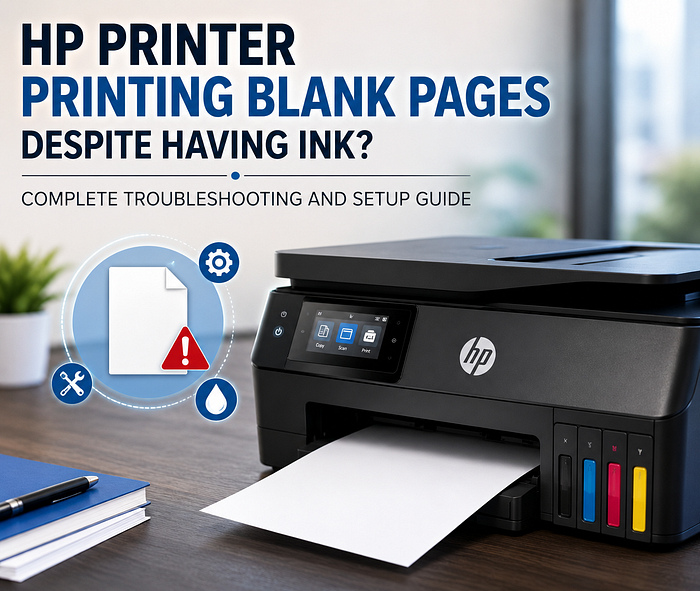
Fortunately, most blank page printing issues can be diagnosed and resolved through a structured troubleshooting process. This guide outlines the primary causes of the problem and provides practical solutions to restore normal printer operation.
Table of Contents
- Common Causes of HP Printer Printing Blank Pages
- Step-by-Step Troubleshooting Methods
- Preventive Maintenance Tips
- Conclusion
Common Causes of HP Printer Printing Blank Pages
Several factors can contribute to blank page output even when ink cartridges contain adequate ink.
Low or Undetected Ink Levels
Although cartridges may still contain ink, the printer may fail to detect them correctly. Low ink levels can also affect print quality and result in incomplete or blank prints.
Clogged Printheads
Printheads are responsible for transferring ink onto paper. Dried ink, debris, or prolonged printer inactivity can obstruct the nozzles and prevent ink flow.
Incorrect Print Settings
Improper print configuration, incorrect paper settings, or application-specific errors can interfere with the printing process.
Incompatible or Faulty Cartridges
Using damaged, incompatible, or improperly installed cartridges may prevent the printer from recognizing and utilizing the available ink.
Outdated Drivers or Firmware
Printer drivers and firmware are essential for communication between the printer and the operating system. Outdated software can cause unexpected printing issues, including blank pages.
Step-by-Step Troubleshooting Methods
Follow these troubleshooting procedures to identify and resolve the issues
- Check ink levels using the HP Smart App or printer control panel.
- Ensure cartridges are installed correctly.
- Inspect cartridges for visible damage.
- Replace cartridges if necessary.
Run the Printhead Cleaning Utility
- Access the printer maintenance menu.
- Perform a printhead cleaning cycle.
- Print a diagnostic page to verify ink flow.
- Repeat the cleaning process if required.
Review Printer Settings
- Confirm the correct HP printer is selected.
- Verify paper size and media settings.
- Check print quality preferences.
- Reset printer settings to default values if necessary.
Update Printer Drivers
- Visit the HP Support website.
- Search for your printer model.
- Download and install the latest driver package.
- Restart both the printer and computer after installation.
Perform a Printer Reset
- Turn off the printer.
- Disconnect the power cable.
- Wait approximately 60 seconds.
- Reconnect the power source and restart the device.
These procedures resolve the majority of HP printer blank page issues without requiring professional servicing.
Preventive Maintenance Tips
Regular maintenance is essential for preventing future printing problems and ensuring consistent performance.
Best Practices
- Clean printheads periodically.
- Monitor cartridge condition and ink levels.
- Use genuine HP cartridges whenever possible.
- Store printing supplies in a cool, dry environment.
- Keep printer drivers and firmware updated.
- Avoid extended periods of printer inactivity.
- Print a test page regularly to maintain ink flow.
- Turn off the printer properly when not in use.
Preventive maintenance not only improves print quality but also extends the operational lifespan of the printer.
Conclusion
HP printer blank page output despite available ink is commonly associated with printhead blockages, cartridge issues, incorrect printer settings, or outdated software components. A systematic troubleshooting approach allows users to identify the root cause and restore normal printing functionality efficiently.
By following the diagnostic procedures and preventive maintenance recommendations outlined in this guide, users can minimize printing interruptions, improve device reliability, and maintain optimal print quality over the long term.
Source: hp printer printing blank pages
Categorieën
Read More
In the health landscape of 2026, the traditional laboratory visit has become a secondary choice for many. The convenience of blood sample collection from home has transitioned from a premium service to a baseline medical standard, driven by a 9% annual growth in the Indian diagnostic market. However, with the explosion of providers in urban hubs like Bangalore, the burden of choice has shifted...

In today’s fast-paced world, working professionals often find themselves juggling multiple responsibilities—demanding careers, family obligations, financial pressures, and personal goals. While these challenges are part of modern life, they also contribute to increased stress, anxiety, and even burnout. In such scenarios, seeking professional help becomes essential. However,...

CAD Drafting Service USA helps architects, engineers, contractors, and construction professionals develop accurate technical drawings that support smooth project planning and execution. Using advanced CAD software, professional drafting services create detailed floor plans, elevations, sections, shop drawings, and construction documents that improve design clarity and project coordination....

Sustainability has become a major trend influencing product development across the industry. Manufacturers are designing environmentally friendly internal gear pumps that reduce energy consumption, minimize emissions, and support sustainable industrial operations without compromising performance. The Internal Gear Pump Market is witnessing steady growth as industries increasingly prioritize...

Professional Product Photography That Helps Your Brand Stand Out In today's competitive online marketplace, first impressions happen in seconds. Before customers read a product description or compare prices, they notice the image. High-quality product photography can instantly build trust, showcase quality, and encourage buyers to take action. At MartinWorster Photography, we specialize in...
