


BrandPos SoftPOS App Setup Guide: Go Live in As Little As 10 Minutes
Getting started with BrandPos SoftPOS App is designed to be straightforward for eligible merchants. After completing registration, KYC verification, installing the app on a compatible Android smartphone, and activating your account, you can begin accepting supported digital payments and manage transactions from one device.
Why Fast Onboarding Matters
For small businesses, every day without digital payments can mean missed opportunities.
Customers increasingly expect merchants to accept contactless cards, UPI, and other digital payment methods. The easier it is to begin accepting payments, the sooner businesses can improve customer experience and streamline operations.
Unlike traditional payment terminals that may involve waiting for hardware delivery and installation, smartphone-based payment acceptance focuses on getting eligible merchants started using compatible Android devices they already own.
BrandPos SoftPOS simplifies this process with a guided onboarding experience designed for retailers, restaurants, delivery businesses, freelancers, service professionals, and other growing businesses.
Let's walk through each step.
Step 1: Register Your Merchant Account
The first step is creating your merchant profile.
During registration, you'll typically provide your business details so the onboarding process can begin.
Depending on your business type, information may include:
- Business name
- Owner details
- Mobile number
- Email address
- Business category
- Business address
Providing accurate information helps speed up the verification process and reduces delays later.
Once your basic information is submitted, you can continue with merchant verification.
Step 2: Complete the KYC Process
Know Your Customer (KYC) verification is an important part of secure payment acceptance.
KYC helps verify merchant identity and supports compliance with applicable payment regulations.
Depending on onboarding requirements, merchants may be asked to provide documents such as:
- PAN
- Aadhaar (where applicable)
- Business registration documents (if required)
- GST information (where applicable)
- Bank account details
- Identity verification documents
Submitting clear, accurate documents helps avoid unnecessary delays.
Approval timelines can vary depending on verification requirements.
Step 3: Prepare a Compatible Android Device
Before accepting payments, you'll need a supported Android smartphone.
BrandPos SoftPOS App is designed to work with compatible Android devices that meet the required technical and security standards.
Typical recommendations include:
- Supported Android version
- NFC capability where required for supported contactless payments
- Reliable internet connectivity
- Updated operating system
- Sufficient battery life
- Adequate storage space
For security reasons, rooted or modified Android devices are generally not supported.
Keeping your device updated also helps maintain optimal performance and security.
Step 4: Download and Install the Application
Once your account is ready, download the BrandPos application through the official distribution channel provided during onboarding.
Installation usually takes only a few moments.
After opening the application:
- Sign in using your registered credentials.
- Complete any required verification.
- Accept applicable permissions.
- Allow the application to initialize.
Following the guided prompts helps ensure the application is configured correctly before your first transaction.
Step 5: Activate Your Merchant Profile
After installation, the application will guide you through account activation.
Activation confirms that your verified merchant account is linked with your compatible smartphone.
During this stage, the application may:
- Validate your account
- Check device compatibility
- Verify security requirements
- Configure payment acceptance features
Once activation is complete, you're ready to begin accepting supported digital payments.
Step 6: Complete Your First Transaction
Your first payment is usually the easiest way to become familiar with the workflow.
A typical transaction looks like this:
Enter the Amount
Type the purchase value into the application.
Confirm the Payment
Review the amount before presenting the payment option to the customer.
Customer Pays
Depending on the merchant's configuration and supported payment methods, the customer completes the payment using an eligible digital payment option.
Transaction Processing
The payment is securely processed through the applicable payment network.
Confirmation
Once approved, both merchant and customer receive payment confirmation, and the transaction is recorded for future reference.
After one or two successful transactions, most merchants become comfortable with the payment flow.
Managing Daily Transactions
BrandPos is more than a payment acceptance tool.
Depending on your account configuration, you may also be able to access useful business information, including:
- Transaction history
- Daily payment summaries
- Collection reports
- Reconciliation details
These features help merchants monitor business activity without relying on handwritten records or manual calculations.
Troubleshooting Common Setup Issues
Most onboarding experiences are smooth, but occasional issues can occur.
Here are a few common situations and practical solutions.
KYC Verification Is Taking Longer Than Expected
Double-check that all submitted documents are complete, clear, and match your registration details.
Device Compatibility Issues
Ensure your smartphone meets the supported Android and security requirements.
NFC Isn't Working
Verify that your device supports NFC (where required) and that the feature is enabled in your phone's settings.
Unable to Log In
Confirm that you're using the correct registered credentials and complete any required verification steps.
Internet Connection Problems
Use a stable mobile data or Wi-Fi connection during registration, activation, and payment processing.
If problems continue, contact BrandPos merchant support for assistance.
Security During Setup
Security begins before the first payment.
BrandPos supports secure payment processing through industry-recognized practices such as:
- Encrypted transaction handling
- Secure communication channels
- PCI DSS-focused security measures
- Supported device verification
Merchants can also improve security by:
- Using strong passwords
- Locking their smartphones
- Keeping software updated
- Avoiding rooted devices
- Protecting login credentials
These habits help maintain a secure payment environment.
Final Thoughts
Digital payment acceptance doesn't need to be complicated.
BrandPos SoftPOS simplifies onboarding by guiding eligible merchants through registration, KYC verification, compatible device setup, activation, and payment acceptance using supported Android smartphones.
Whether you're opening your first retail shop, running a delivery business, managing a café, or operating a growing service company, smartphone-based payment acceptance provides a flexible way to begin serving today's digital customers.
Frequently Asked Questions
1. Do I need business registration before applying?
Requirements vary depending on merchant category and onboarding policies. Check the official registration requirements for your business type.
2. Can I install the app on a new smartphone later?
Yes. Subject to merchant account policies and device compatibility, merchants may be able to use another supported device after completing the appropriate verification steps.
3. What happens if my KYC documents are rejected?
You'll typically receive guidance on the reason for rejection so corrected or updated documents can be submitted.
4. Can I practice using the app before serving customers?
Many merchants become familiar with the workflow by reviewing the application interface and completing any available guided onboarding steps before processing live transactions.
5. How do I know my setup is complete?
Once registration, verification, activation, and device checks are successfully completed, the application will indicate that your merchant account is ready to accept supported payments.
Categorieën
Read More
Achieving smooth, hair-free skin has never been easier thanks to Electrolysis Laser Hair Removal. This advanced method helps individuals enjoy hair-free skin without stress, offering long-lasting results and a boost in confidence. Both men and women are increasingly choosing this solution to maintain flawless skin effortlessly, making it a preferred option for anyone seeking a more polished...

The global Tea Packaging Machine Market is entering a new phase of growth as tea manufacturers, specialty beverage companies, and contract packagers increasingly invest in automated packaging systems to improve production efficiency, preserve product freshness, and meet evolving consumer expectations. The market is projected to expand from USD 2.98 billion in...

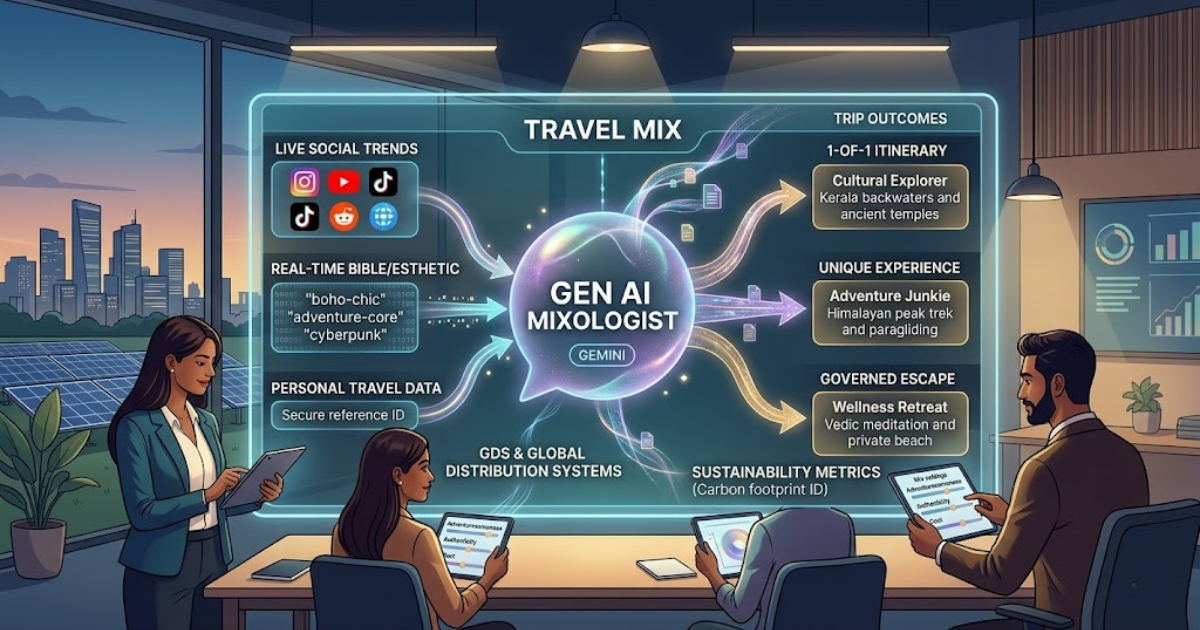
The tourism landscape in 2026 has moved beyond the era of generic holiday packages. We have entered the age of "Travel Mixology." This technical trend represents the sophisticated blending of Generative AI (GenAI) with real-time social data to create highly curated, "one-of-one" travel experiences. Today, a successful itinerary does not just come from a database; it emerges from a complex...
A new growth forecast report titled e-KYC Market Size, Share, Trends, & Industry Analysis Report By Product (Identity Authentication and Matching, Video Verification), By Deployment Mode, By End-Use, By Region – Market Forecast, 2025–2034 introduced by Polaris Market Research represents conclusive data on the overall market. It majorly targets to provide a detailed...

Mornye's Support Role Mornye serves as a versatile support character in Wuthering Waves, renowned for her wide-ranging buffs and healing capabilities. Her adaptable nature allows her to seamlessly integrate into various team compositions, often matching or surpassing the performance of characters like Verina or Shorekeeper. While her effectiveness can fluctuate slightly based on the team...
