What to Know Before Replacing a Laptop Storage Drive

A laptop storage drive plays a critical role in everyday performance. It stores the operating system, applications, documents, photos, videos, and other important files. When a drive becomes unreliable, too small, or noticeably slow, replacing it can be an effective way to improve the laptop without purchasing an entirely new computer. However, storage replacement requires more planning than simply buying a drive and installing it.
Before making a decision, users should consider compatibility, storage capacity, data backup, operating-system installation, performance requirements, and the condition of the rest of the laptop. iPC Repair Houston can help evaluate an existing storage drive and determine whether replacement is appropriate. If the laptop also has physical damage, laptop screen repair Houston may be needed as part of a broader hardware assessment.
Why Replace a Laptop Storage Drive?
There are several reasons a laptop owner might consider replacing a storage drive. One of the most common is declining performance. An aging or failing drive can cause slow startup, delayed file access, freezing, and application crashes.
Other reasons include:
- Insufficient storage capacity
- Drive failure warnings
- Corrupted files
- Slow file transfers
- Frequent system errors
- Upgrading from an HDD to an SSD
- Preparing an older laptop for continued use
A well-planned laptop storage upgrade can provide additional space and, in some cases, a substantial improvement in everyday responsiveness.
Determine What Type of Drive Your Laptop Uses
Before purchasing a replacement, determine which type of storage your laptop supports. Laptops may use traditional hard disk drives, SATA SSDs, or newer NVMe SSDs.
Even among SSDs, physical sizes and connection standards can differ. A drive that works in one laptop may not be compatible with another.
Check the laptop's specifications or have the device professionally inspected before purchasing a replacement. Compatibility should be confirmed based on the laptop's motherboard, connector, physical space, and supported storage technology.
Consider the Right Storage Capacity
Choosing capacity depends on how the laptop is used.
For basic activities such as web browsing, office applications, and documents, a moderate amount of storage may be sufficient. Users who store large photo libraries, videos, games, or professional projects may need substantially more.
Consider your current storage usage and future needs rather than choosing a capacity that will immediately become full.
Leaving reasonable free space is also useful because operating systems and applications require room for temporary files, updates, and other operations.
SSD or HDD?
If your laptop currently uses a traditional hard disk drive, upgrading to an SSD may offer a noticeable performance improvement.
SSDs generally provide:
- Faster startup
- Quicker application loading
- Faster file access
- Lower mechanical noise
- Better resistance to physical movement
Traditional HDDs can still provide useful storage capacity, particularly when cost and large amounts of space are priorities. However, an SSD is often a practical upgrade for improving the responsiveness of a compatible laptop.
Back Up Important Data First
One of the most important steps before replacing a storage drive is creating a reliable backup.
Your drive may contain:
- Personal documents
- Family photos
- Business files
- School projects
- Password-related information
- Application data
- Downloads
- Financial records
Do not assume that data will automatically transfer safely during a drive replacement.
Back up important information to an external storage device, cloud service, or another trusted location. If the original drive is already showing signs of failure, professional data-transfer or recovery assistance may be preferable.
Decide Whether You Need Cloning or a Fresh Installation
There are generally two approaches to moving to a new storage drive.
Drive Cloning
Cloning copies the existing operating system, applications, settings, and files to the new drive. This can make the transition easier because the new drive may look much like the original system.
However, cloning a failing drive can be risky. If the original drive contains damaged or corrupted sectors, the cloning process may not work properly.
Fresh Operating-System Installation
A fresh installation provides a clean starting point. It can remove accumulated software problems and unnecessary files.
However, applications and personal settings may need to be installed or configured again.
The best option depends on the condition of the original drive and the user's needs.
Check the Laptop's Overall Condition
Replacing the storage drive makes sense only if the rest of the laptop remains suitable for continued use.
Before investing in new storage, consider the condition of:
- Processor
- RAM
- Battery
- Cooling system
- Motherboard
- Keyboard
- Charging port
- Display
If several major components are already failing, a storage upgrade may not provide the best long-term value.
Don't Ignore Existing Screen Damage
A storage replacement will not resolve a damaged display. If the laptop has cracks, flickering, lines, discoloration, or a black screen, the display needs separate attention.
For users searching for laptop screen repair Houston, professional evaluation can determine whether the panel, display cable, or another component needs repair or replacement.
Similarly, customers searching for screen repair Houston TX after an accident should consider a complete hardware inspection. A laptop that has suffered a significant impact may have both visible and hidden internal damage.
Consider Data Recovery if the Drive Is Failing
Replacing a drive is straightforward when the original storage is healthy. The situation becomes more complicated when the existing drive is already failing.
Warning signs include:
- Clicking sounds from an HDD
- Frequent file corruption
- Missing files
- Extremely slow performance
- Repeated startup errors
- Drive detection problems
- Frequent system freezes
If important files exist on a failing drive, avoid repeatedly restarting or performing unnecessary operations. Professional data recovery or transfer may provide a safer approach.
Professional Installation Can Reduce Risks
Laptop storage replacement may require opening the device, disconnecting internal components, removing mounting hardware, and installing the new drive correctly.
Improper installation can damage connectors or other components. Operating-system configuration and data migration can also create complications.
At iPC Repair Houston, professional technicians can evaluate the existing storage, verify compatibility, install an appropriate replacement, and help address related hardware concerns.
How to Choose a Reliable Replacement
Do not select a storage drive based solely on price. Consider:
- Compatibility
- Capacity
- Performance
- Reliability
- Warranty
- Manufacturer specifications
- Intended workload
A suitable drive should match the laptop's supported technology and provide enough capacity for both current and future needs.
Conclusion
Replacing a laptop storage drive can be an excellent way to solve storage limitations, improve performance, or extend the useful life of an otherwise capable computer. However, the process requires careful consideration of compatibility, capacity, data backup, operating-system installation, and the overall condition of the laptop.
If the existing drive is showing signs of failure, protecting important data should come first. If the laptop also has physical damage, laptop screen repair Houston or screen repair Houston TX services may be required alongside storage work. With professional assistance from iPC Repair Houston, you can determine whether a storage replacement is appropriate, choose compatible hardware, and reduce the risks associated with transferring important files. A properly planned laptop storage upgrade can give an older but capable laptop a new lease on life.
Категории
Больше
Panic Exit Devices Market is experiencing favorable growth as businesses invest in secure building management systems. Panic exit devices play an essential role in ensuring quick evacuation while maintaining access control. Rising infrastructure development is strengthening long-term market prospects. The Panic Exit Devices Market is witnessing steady growth as governments,...

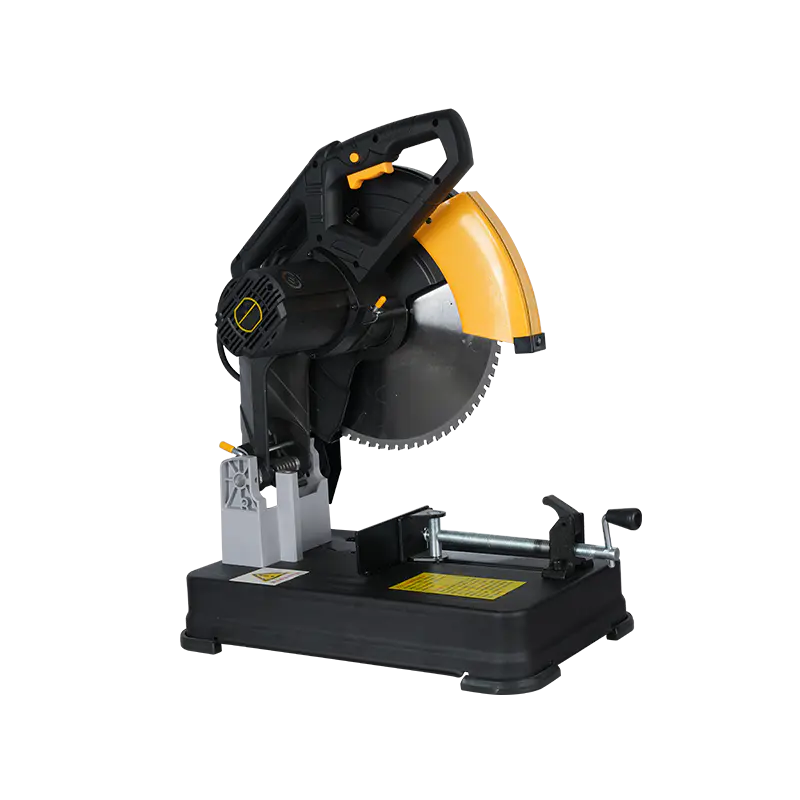
A Metal Cutting Saw Factory plays a vital role in modern manufacturing, providing the essential tools that shape metals into usable parts for construction, automotive, and industrial applications. Every blade, frame, and machine component produced in such a factory reflects the balance between durability, precision, and cost-effectiveness. Understanding how a Metal Cutting Saw Factory operates...
According to the latest report published by Data Bridge Market Research, the Cellular Rubber Market CAGR Value The global cellular rubber market size was valued at USD 1.85 billion in 2025 and is expected to reach USD 2.06 billion by 2033, at a CAGR of 4.50% during the forecast period An influential Cellular Rubber Market report...
Creating stage magic requires both vision and precision. For the play's pivotal time-turner sequence, director John Tiffany initially envisioned a visual shift - perhaps monochrome or sepia tones evoking aged photographs. Technical constraints steered him toward bolder solutions. The illusion unfolds through layered sensory cues: whirling clock hands frame the stage, ticking intensifies into a...

Making Dell EMC E20-562 Exam Study Simple and Stress-Free Preparing for the Dell EMC E20-562 exam does not have to feel stressful or confusing. Many students struggle because they study too much without a clear plan. They read many resources but still feel unsure about what really matters for the exam. Choosing clear and trusted Dell EMC E20-562 study material makes preparation simple, focused,...