


Laptop Won’t Connect to Wi-Fi? Expert Fixes That Work
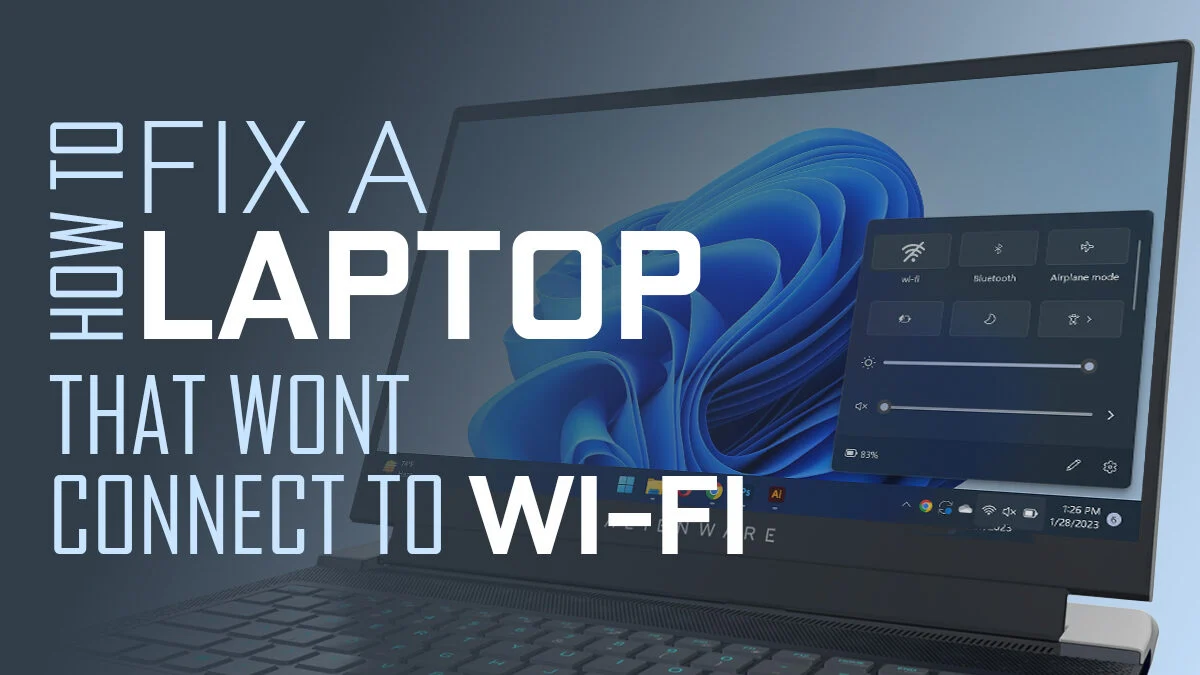
A laptop that refuses to connect to Wi-Fi can disrupt your work, online classes, or daily tasks. This problem often occurs on Windows and macOS laptops. It can be caused by software errors, outdated drivers, wrong settings, or hardware issues. Most Wi-Fi connection problems can be fixed by following the right steps.
In this guide, we offer expert-tested fixes that really work. These tips will help you quickly and safely restore your laptop’s internet connection.
1. Check the Wi-Fi Network and Router
Before troubleshooting your laptop, confirm that the Wi-Fi network itself is working properly. Check whether other devices can connect to the same network. Make sure the router is powered on and functioning correctly.
Restarting the router and modem can clear network glitches. This often fixes connectivity issues.
2. Restart Your Laptop
A system restart can resolve minor software conflicts that prevent your laptop from connecting to Wi-Fi. Temporary bugs, background services, or memory issues may interfere with the network adapter.
Completely shut down your laptop. Wait a few seconds, then turn it back on. This refreshes system processes.
3. Forget and Reconnect to the Wi-Fi Network
Saved Wi-Fi credentials can sometimes become corrupted, causing connection failures.
Open your laptop's Wi-Fi settings. Select the network you want to connect to. Choose “Forget” and then reconnect by entering the correct password. This resets the connection and resolves authentication errors.
4. Update or Reinstall Wi-Fi Drivers
Outdated or faulty Wi-Fi drivers are a major reason laptops fail to connect to wireless networks. Keeping your drivers updated ensures compatibility with the operating system and network protocols.
Open Device Manager, locate Network Adapters, and update your wireless driver. If updating does not help, uninstall the driver and restart your laptop. The system will automatically reinstall the correct version.
5. Run the Network Troubleshooter
Windows and macOS have built-in network troubleshooting tools. These tools can find and fix common problems, like IP conflicts or wrong network settings.
On Windows, go to Network & Internet settings and run the network troubleshooter. Mac users can use Wireless Diagnostics to identify the problem.
6. Disable Power Saving Settings for the Wi-Fi Adapter
Power-saving features might turn off your wireless adapter to save battery. This is common on laptops.
Open Device Manager, access the Wi-Fi adapter properties, and disable power management options. This helps maintain a stable Wi-Fi connection without random disconnections.
7. Check Firewall or Antivirus Interference
Sometimes, firewall or antivirus software might block internet access if they're not set up right. Temporarily disabling security software can help determine if it is causing the issue.
If Wi-Fi works after disabling the software, adjust the settings or reinstall the application properly. Always re-enable your security protection afterward.
8. Identify Possible Hardware Problems
If none of the above solutions work, your laptop may have a hardware-related issue. Common hardware problems are a damaged Wi-Fi card, a loose internal antenna, or motherboard network failure.
Fixing things without the right tools can make matters worse, so it's best to seek professional help.
Call to Action: Professional Laptop Repair in Dubai
If your laptop still won’t connect to Wi-Fi, expert help can save you time and prevent further damage. Atdoorstep offers dependable laptop repair Dubai services. Their skilled technicians are experts in diagnosing and fixing Wi-Fi connectivity problems.
Our laptop repair services in Dubai offer:
-
On-site inspection
-
Genuine parts replacement
-
Transparent pricing
-
Fast turnaround
Atdoorstep ensures your laptop is fixed right, whether it’s a driver problem or a hardware issue.
Contact Atdoorstep today for reliable laptop Wi-Fi repair. Get your internet connection back without the hassle.
Final Thoughts
Wi-Fi issues are often easy to fix. Simple troubleshooting can help, but stubborn problems might need a pro. Try these expert tips or get help from trusted laptop repair services near me. This can lead to a stable and long-lasting Wi-Fi connection.
For reliable Laptop Repair in Dubai, experienced technicians really matter. For more details, call our technicians at 045864033.
Catégories
Lire la suite
A well-designed boardroom plays a crucial role in shaping productive discussions, strategic planning, and professional communication. Modern organizations increasingly depend on integrated audio-visual systems that support seamless presentations, video conferencing, and interactive collaboration. Sophisticated display technologies, crystal-clear audio distribution, and intuitive control systems...

Current transformers are essential electrical devices used to measure, monitor, and protect power systems by converting high electrical currents into standardized lower currents suitable for meters, relays, and monitoring equipment. They play a critical role in ensuring the safe operation of transmission and distribution networks, industrial facilities, renewable energy installations, and...

The best outdoor improvements rarely shout for attention. They simply work every day without causing trouble. A reliable fence keeps spaces organised protects what matters and gives a property a finished appearance. Some owners need security while others want clear boundaries around fields or gardens. The right fencing solution supports both needs with very little effort after installation. A...

Psyche is introduced in Duet Night Abyss as a warm and cheerful lodger at Hypnos’ House in the Hypoberian Empire, one of the first characters to show the main character genuine kindness. Her bright personality makes her immediately likable, but beneath that surface lies a tragic reality: she suffers from Deterioration, a disease that exclusively afflicts Charons and gradually transforms...

Forestry Lubricants Market According to the latest report published by Data Bridge Market Research, the Forestry Lubricants Market The global forestry lubricants market size was valued at USD 7.93 billion in 2024 and is expected to reach USD 11.81 billion by 2032, at a CAGR of 5.10% during the forecast period The market growth is largely fueled by the...
