How to Download Gmail Backup in Multiple File Formats Easily
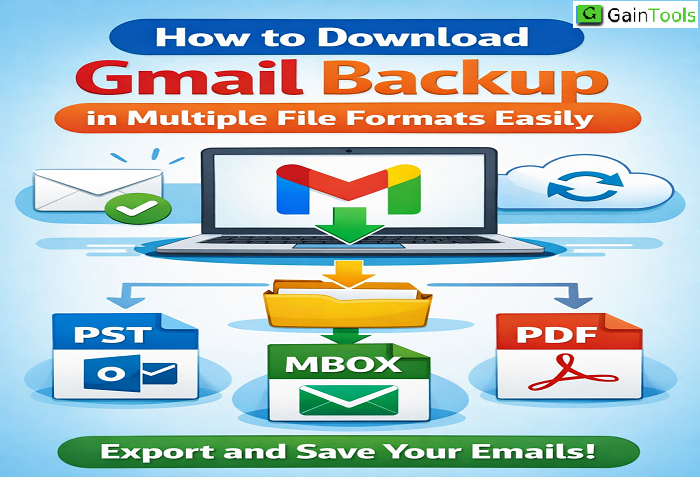
In today’s digital world, emails are one of the most important forms of communication, storing everything from personal conversations to business-critical data. That’s why learning how to download Gmail Backup efficiently, and in multiple file formats, is essential for data safety, compliance, and easy accessibility.
Google continually alters its security rules and data protection procedures, so businesses need to utilize the most up-to-date security solutions.
The post shows you simple ways to download Gmail backups that don't use ads and still meet Google's current standards.
Why Should You Get Gmail Backup?
Before we talk about several methods, we need to talk about why you should backup Gmail email data:
- Data Security: The technology keeps emails safe from both accidental deletion and hackers.
- Offline Access: Users can check their email even if they don't have an internet connection.
- Migration Needs: This process entails moving emails to multiple email clients and platforms.
- Compliance and Archiving: The company needs to retain documents for both legal and business reasons.
Google has built-in tools that make it easier to download Gmail Backup, but knowing how to export data in different formats makes it easier to work with.
Common File Types for Downloading Gmail Backup
When you download Gmail data, you can choose from several formats. The format you use will depend on what you need:
- MBOX: A common format that many email programs, including MBOX, support.
- PST: This is the format that Microsoft Outlook uses to save emails on local storage.
- EML: This format lets users open and distribute individual email messages.
- PDF: This format is good for paperwork and lets you print.
Choosing the right format makes the system easier to use and more compatible.
Different Ways to Download Gmail Backup
Method 1: Using Google Takeout
Google Takeout is the most reliable way to download a backup of Gmail.
Steps:
- Go to Google Takeout.
- Log in with your Gmail account.
- Click "Deselect All" and then "Mail.
- Pick certain labels or include all of your mail.
- Click Next Step after scrolling down. 2w1q Click the button to make an export.
Format of Output:
Data from Gmail is saved in MBOX format.
Important Notes:
- Google now requires tighter authentication, which can include two-step verification.
- The size of the mailbox determines how long it will take to make an export, which can be anywhere from a few hours to a few days.
- Because of security needs, the utility turns off download links after a certain amount of time.
Method 2: Convert MBOX to Other Formats
An email software like MS Outlook or Thunderbird can change an MBOX archive straight into other formats.
1. Options for manual conversion:
- Add MBOX to an email program
- You can use Mozilla Thunderbird to bring in MBOX files.
- You can do the following once you import:
- Save emails as EML files
- Print emails as PDF
2. Export to Outlook (for PST)
- Import MBOX into Thunderbird
- Use IMAP to sync Thunderbird with Outlook
- Export Outlook data to PST
Limitations:
- Takes a long time for large mailboxes
- Needs technical steps
- If not done well, there is a chance of data discrepancy.
Method 3: Using Gmail Print Option to Make a PDF Backup
Gmail has a built-in option for saving only certain emails as a PDF.
Steps:
- Select the email in Gmail and open it.
- Hit the Print button.
- Click "Save as PDF."
- Put the file on your computer.
The best for:
- Keeping critical talks
- For legal or paperwork reasons
Important Tips Based on Google Updates:
Google often makes changes to its environment to make it safer and easier to use. You should think about these reasons for obtaining the Download Gmail Backup software.
1. Enhanced Security Measures
- Google is currently working on security updates that include:
- Two-step verification (2FA)
- Third-party tools can use app-specific passwords.
- Before you can export data, you need to make sure your account is safe.
2. Following the rules for data privacy
- Google follows international privacy laws, such as the GDPR. Users must perform the following to download backups:
- Users must handle data in a safe way.
- Users must encrypt sensitive papers before sharing them to keep them safe.
3. Limits on storage and export size
- For large mailboxes that need to be archived, several archive files will be made. Users should choose either the 2GB or 4GB archive alternatives because those sizes are better for them.
For more detailed information:
https://support.google.com/accounts/answer/3024190
https://support.google.com/accounts/answer/185839?co=GENIE.Platform%3DAndroid&hl=en
Best Ways to Backup Gmail Emails
Using these suggested automatic tools for downloading Gmail backup strategies will make your backup procedure work as well as possible.
Backups regularly:
- You shouldn't start backup your data just because you've lost some.
- To keep your data safe, you should set up frequent intervals for backup.
- Put Your Data in Order
Before exporting:
- Get rid of emails that you don't need
- Put folders and labels in order
- Check Backup Files
After downloading:
- Check the files after opening them.
- Make sure to include all important emails.
- Store Securely
These are the best places to save backups:
- Hard drives that are outside
- Cloud storage with encryption
Challenges You Might Face
- You will encounter many problems while trying to download Gmail Backup.
- The system needs to handle massive data sets, which is why the export performance is slow.
- Some clients don't work with the MBOX format, which makes it hard to share files.
- When downloads are interrupted, just half of the file is downloaded, which makes it corrupted.
In conclusion
Both personal and professional users need to be able to download Gmail Backup in different file formats. The official Google Takeout method lets you safely export your data in MBOX format, which you can then convert to other formats if needed. Companies need to stay up to date on changes to Google's policies because the company adds new security features that require them to follow best practices for security. When you make regular backups, organise your files well, and store them safely, your email data will be safe and always accessible.
The blog gives you simple ways to manage and protect your Gmail information without utilising complicated tools or advertising.
Categories
Read More
The ecommerce and retail industry is experiencing a significant transformation driven by artificial intelligence (AI). As customer expectations continue to rise, businesses must deliver faster support, personalized experiences, and seamless shopping journeys to remain competitive. AI-powered customer support solutions are helping retailers automate routine interactions, improve response times,...

I recently needed to backup Yahoo to PST so that I could access my emails in Microsoft Outlook and keep an offline archive for long-term storage. While the manual IMAP method works, it requires Outlook configuration, complete mailbox synchronization, and can become quite time-consuming for large accounts. I was looking for a simpler approach that would preserve folders, attachments, and email...
The global Advanced Ceramics Market is witnessing steady expansion, driven by increasing demand for high-performance materials across a wide range of industries. According to recent market analysis, the advanced ceramics market size is valued at USD 110.26 billion in 2025 and is projected to reach USD 175.80 billion by 2033, growing at a CAGR of 6.07% during the forecast period from...

United States of America– 19 Dec 2025- Virtual sensors are revolutionizing industries by leveraging software algorithms to estimate measurements without physical hardware, driving efficiency in data-driven operations. This market-oriented report explores key dynamics, growth drivers, and strategic opportunities shaping the sector's trajectory. The Virtual Sensors...
The world of online entertainment is evolving rapidly, and users today are constantly searching for platforms that offer both excitement and reliability. In this growing space, 11xplayPro has emerged as a trusted name for those who want a smooth and engaging online gaming and betting experience. With its modern features and user-focused design, it is quickly becoming a preferred choice among...