


Raw Accel: Optimization & Sensitivity Scaling
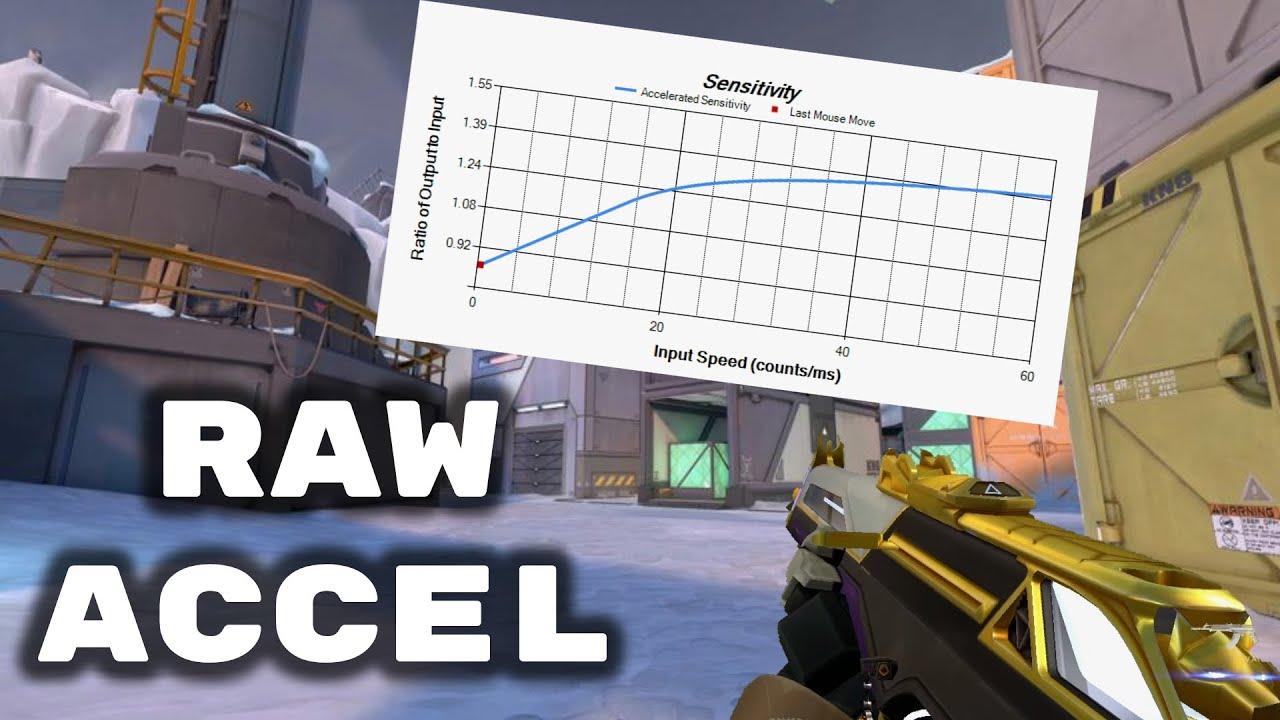
While many players swear by “Raw Input” to build muscle memory, a growing community of professionals in games like Valorant and Apex Legends are turning to raw acceleration to get the best of both worlds: low-sensitivity precision for micro-adjustments and high-sensitivity speed for 180-degree flicks.
Unlike the inconsistent “Enhance Pointer Precision” found in Windows, this driver-based solution allows you to build a custom, predictable curve. Here is everything you need to know about optimizing your settings for peak performance.
Advanced Optimization: Beyond the Basics:
To get the most out of raw acceleration, you need to understand how different variables interact with your mouse sensor. The goal is to create a seamless transition between slow tracking and rapid flicking.
The Offset Value: This is arguably the most important setting for tactical shooters. By setting an offset, you define a speed threshold where acceleration hasn’t kicked in yet. This ensures your micro-corrections remain 1:1 with your mouse movement.
The Gain Curve: If you prefer a more natural feel, the “Gain” setting allows the acceleration to increase proportionally to your speed, preventing the “jumpy” feeling associated with older acceleration software.
Anisotropy: For players who find they vertical flick differently than horizontal, raw acceleration allows for independent X and Y axis scaling, a feature rarely found in standard mouse drivers.
Understanding Sensitivity Scaling:
When you begin your raw accel install, you aren’t just adding speed; you are remapping your physical space.
Cap Settings: Always set a “Cap” on your curve. This prevents your sensitivity from reaching infinite speeds during a panic flick, ensuring that even at your fastest movement, the mouse remains controllable.
Input vs. Output Visualization: Use the built-in graph in the raw accel download package to visualize your curve. Moving your mouse in real-time will show a red dot on the graph, helping you identify exactly where your “sweet spot” for flicking lies.
Optimizing Your Curve:
The beauty of this software lies in its customization. You can choose between Linear, Classic, Natural, or even Power curves. If you are a low-DPI player who struggles to clear corners, adding a slight “Offset” will keep your aim steady during slow movements while ramping up the speed only when you move your mouse rapidly. Many high-level players use a raw accel install specifically to mimic the “Quake-style” acceleration that provides a consistent feel across different titles.
Troubleshooting and Removal:
Because this software operates at the driver level, simply deleting the folder will not remove the acceleration from your system. If you decide the “curve life” isn’t for you, you must follow the proper procedure for how to uninstall raw accel.
To uninstall:
Open the original folder where you extracted the files.
Run uninstaller.exe.
Restart your PC immediately. Failing to restart after running the uninstaller can sometimes lead to your mouse being unresponsive because the OS is still trying to communicate with a driver that has been flagged for deletion.
Conclusion:
Whether you are looking to save desk space or simply want to emulate the settings of pros like Tenz, raw acceleration offers a level of control that standard Windows settings simply cannot match. By following the raw accel download and optimization steps carefully, you can elevate your aim without sacrificing the muscle memory you’ve worked so hard to build.
الأقسام
إقرأ المزيد
When winter settles over the High Desert, a working heater stops being a comfort and becomes a necessity. Cold nights in the Mojave region can drop fast, and homes without reliable heat feel it right away. That's why homeowners across the region pay close attention to Heater Repair & Installation Services in Adelanto, CA, especially before the coldest months arrive. The desert climate puts...

Facing geo-blocks while traveling? Accessing 'A Suitable Boy' internationally requires a VPN. This BBC One miniseries, based on Vikram Seth's acclaimed novel, premieres Sunday, July 26th at 9 PM BST (4 PM EST / 1 PM PST). Follow Lata's coming-of-age journey in post-partition India. Regional restrictions lock this drama to UK viewers only. Bypass these limits securely with a Virtual Private...

Boost your NCC EFM exam preparation with DumpsHero’s expert-crafted study guides and practice materials. Study smarter, build confidence, and pass with ease. Prepare Smarter for the NCC EFM Exam with DumpsHero – Your Trusted Study Companion Mastering the NCC EFM exam dumps the right blend of knowledge, practice, and confidence. DumpsHero gives IT professionals a streamlined way to...

Building a Strong Foundation for International Opportunities In today's globalized world, English language proficiency has become an essential requirement for higher education, immigration, and professional advancement. Many universities, employers, and immigration authorities use standardized language tests to evaluate communication skills. As a result, thousands of individuals seek structured...

Global Overview During Q1 2026, R-PET price index remained largely stable across major global regions, supported by consistent recycling activity and steady demand from packaging, beverage, and consumer goods industries. Collection rates and recycling operations remained adequate to meet downstream requirements, while sustainability initiatives continued to encourage the use of recycled...
