


How to Speed Up My Computer: 10 Proven Ways to Boost Performance
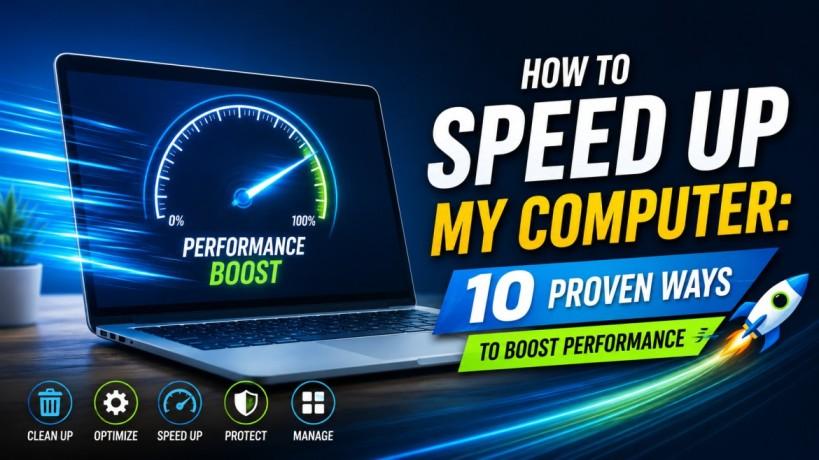
Does your computer seem to be stuck in slow motion? Whether you are a creative professional or a casual browser, a sluggish system is more than just a nuisance it’s a productivity killer. Many users find themselves asking, "how to speed up my computer" after noticing long boot times or laggy applications. The good news is that you don’t usually need a brand-new machine to regain that "out-of-the-box" speed.
You may revitalize your hardware by taking care of background operations, controlling storage, and improving your operating system. Here is a comprehensive guide on how to speed up my computer using professional-grade optimization techniques.
Manage Your Startup Applications
One of the most common reasons for a slow PC is a cluttered startup sequence. Many programs automatically set themselves to launch the moment you log in, hogging CPU and RAM before you even open a browser.
To fix this, open your Task Manager (Ctrl + Shift + Esc) and navigate to the "Startup" tab. Disable any programs that you don't need immediately upon boot. Reducing the "startup impact" is a primary step in learning how to speed up my computer.
Identify Resource-Hungry Processes
Sometimes, a single application is the culprit. Using the Resource Monitor or Task Manager, look for processes consuming high percentages of your CPU, Memory, or Disk. If a specific background task is draining your system, ending that task can provide an instant performance boost.
Clean Up Your Hard Drive
A sluggish hard drive is one that is full. Operating systems need "breathing room" (free space) to create temporary files and swap data.
-
Uninstall Unused Software: Go through your control panel and remove apps you no longer use.
-
Disk Cleanup: Use the built-in Windows Disk Cleanup tool to remove system files, temporary internet files, and emptied recycle bin items.
-
Storage Sense: To automatically remove clutter, turn on Storage Sense in your settings.
Upgrade Your Hardware (SSD vs HDD)
If you are still running your OS on a traditional Hard Disk Drive (HDD), the single best answer to "how to speed up my computer" is to switch to a solid-state drive (SSD). SSDs have no moving parts and offer significantly faster read/write speeds, making boot times almost instantaneous.
Check for Malware and Viruses
Malicious software often runs silently in the background, stealing resources to mine crypto or track your data. To make sure your system is clean, perform a thorough check using Windows Security or a reliable third-party antivirus program.
Adjust Performance Options
Windows includes visual effects like shadows and animations that look great but consume GPU and CPU cycles.
-
Look for "Adjust the appearance and performance of Windows."
-
Select "Adjust for best performance" or manually uncheck boxes for "Animate windows" and "Fade effects."
-
This is a highly effective way for users with older hardware to learn how to speed up their computer.
Update Your OS and Drivers
Software developers constantly release patches that optimize performance and fix bugs. Verify that you are running the most recent version of macOS or Windows. Additionally, check your manufacturer’s website for the latest Graphic Drivers and Chipset Drivers, as these facilitate better communication between your software and hardware.
Increase Your RAM
If you frequently work with heavy applications like video editors or keep dozens of browser tabs open, you might be hitting your RAM limit. Upgrading from 8GB to 16GB (or 32GB) allows your computer to handle more tasks simultaneously without relying on the much slower virtual memory on your hard drive.
Check Your Power Plan
Laptops often default to a "Power Saver" or "Balanced" plan to preserve battery life. However, this throttles your CPU speed. Switch to the High Performance power plan in your settings to unlock your processor's full potential when plugged in.
Consider a Fresh OS Reinstall
If you have tried everything and still find yourself wondering how to speed up my computer, a "Fresh Start" might be necessary. Reinstalling Windows gives you a completely fresh start by eliminating years' worth of accumulated "registry bloat" and system faults.
FAQs
Does deleting photos speed up my computer?
Only when your hard disk is almost full (less than 10% free space) will deleting photos be beneficial. While it frees up storage, it won't directly improve CPU speed unless the drive was previously at capacity.
Will adding more RAM help with gaming speed?
Yes, more RAM can reduce stuttering and improve load times, though your Graphics Card (GPU) is the primary factor for high frame rates in gaming.
How often should I restart my computer?
Restarting at least once every few days is recommended. It clears the system cache and stops runaway background processes that a simple "Shut Down" (with Fast Startup enabled) might not catch.
Can a slow internet connection make my computer feel slow?
Yes. Often, people think their computer is laggy when it is actually their web browser struggling with a slow network. Try running an offline application to see if the speed persists.
Conclusion
Learning how to speed up my computer doesn't have to be expensive or overly technical. By managing your startup items, keeping your storage lean, and ensuring your drivers are current, you can maintain a fast and reliable machine.
For businesses looking for more robust solutions, such as Cloud Managed Services, professional IT optimization can ensure your entire network stays ahead of the curve. Please get in touch with us for a thorough system assessment if your system is still running poorly and you require professional technical assistance.
Categorie
Leggi tutto
According to the latest report published by Data Bridge Market Research, the Progressive Familial Intrahepatic Cholestasis Type 2 Treatment Market CAGR Value Progressive Familial Intrahepatic Cholestasis Type 2 Treatment Market business report estimates each segment of the global market in a very detailed pattern so that readers can be informed about future opportunities...

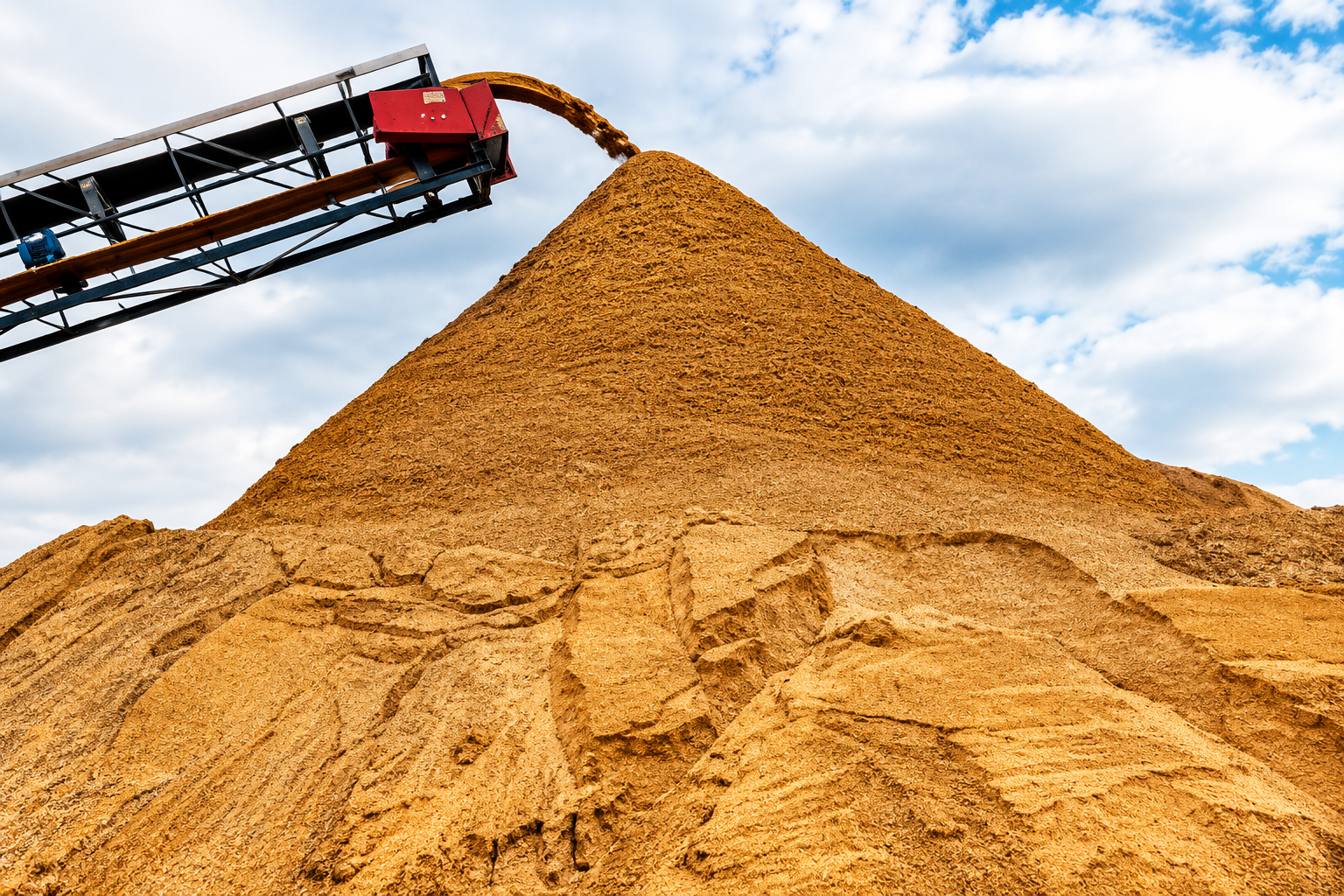
The Zircon Sand Price Trend, Zircon Sand Prices, Zircon Sand Price Forecast are important indicators for industries connected to ceramics, construction, foundries, and advanced manufacturing. Zircon sand is a naturally occurring mineral that is widely used because of its heat resistance, durability, and chemical stability. Even though many people may not recognize the name, zircon sand plays a...
In recent years, conversations around sexual wellness have become more open, informed, and focused on overall well-being. As part of this shift, Male Masturbators have emerged as a popular intimate product for men, designed not just for pleasure but also for enhanced sensory awareness, relaxation, and self-understanding. Far from being a taboo topic, these products are now viewed as tools that...

Breast Cosmetic Surgery in Balewadi for Natural Results Enhancing body confidence and achieving a well-balanced figure has become easier with modern cosmetic procedures. Choosing Breast cosmetic surgery in Balewadi allows individuals to improve breast shape, size, and symmetry using advanced and safe techniques. With experienced specialists and modern clinics in Pune, patients can expect...

Ein alter Heizkessel arbeitet oft ineffizient und verbraucht unnötig viel Energie. Viele Hausbesitzer suchen nach Kesselaustausch, um ihre Heizkosten zu senken und die Leistung zu verbessern. Ein rechtzeitiger Austausch kann langfristig Geld sparen und den Wohnkomfort deutlich erhöhen. Woran erkennt man, dass ein Austausch? nötig ist Wenn die Heizung häufig ausfällt...