


Building Ironclad Data Protection: Implementing Folder Locks with the EaseFilter SDK
Ensuring the security, integrity, and privacy of sensitive files is no longer optional—it is a critical requirement for any modern enterprise application. Whether you are building an anti-ransomware tool, a secure sandbox, or an endpoint data loss prevention (DLP) solution, protecting data at the file-system level is the gold standard.
This is where the EaseFilter File Control SDK and Transparent File Encryption SDK shine. By operating directly at the kernel level, these SDKs allow developers to intercept and control Windows file system operations before they even happen. Today, we are diving deep into one of its most powerful use cases: Folder Locking and File Access Control.
What is the EaseFilter Folder Locker?
At its core, a "Folder Lock" built with the EaseFilter SDK is a zero-trust, kernel-level barrier. It allows you to designate specific directories and completely restrict what users, processes, or applications can do within them.
Because the SDK utilizes the Windows Minifilter driver framework, these restrictions are enforced beneath the user-mode API layers. This means that even if a malicious script or compromised application has Local Administrator privileges, it cannot bypass the lock.
Key Capabilities of the Folder Lock Solution
When you build a folder locker using the EaseFilter SDK, you aren't just toggling a "hidden" attribute in Windows Explorer. You are implementing programmatic, granular control over every single I/O request.
- Granular Permission Enforcement: You can selectively allow or deny specific actions on a per-folder basis. Prevent files from being read, written to, deleted, executed, or copied out of the protected directory.
- Process and User Whitelisting/Blacklisting: Implement a true "Default Deny" policy. You can lock down a folder so that only your trusted, authorized applications (e.g., winword.exe or your proprietary software) can access the files, while blocking everything else.
- Anti-Ransomware Defense: By denying mass-rename or mass-overwrite requests from untrusted or unknown processes, a folder locker acts as a proactive shield against ransomware encrypting your data.
- File Hiding: Go beyond access denial and completely hide sensitive items from Windows Explorer and other applications, protecting them from accidental discovery.
- Real-Time Auditing: Every time an unauthorized process attempts to access the locked folder, the SDK fires a pre-I/O event. You can log these blocked attempts in real-time for compliance and forensics.
Real-World Use Cases for a Folder Locker
Why are enterprise developers integrating kernel-level folder locking into their software architectures? Here are a few prominent scenarios:
- Zero-Trust Ransomware Protection: Create decoy "honey-pot" folders or highly secured data vaults where ransomware cannot encrypt, rename, or delete files, even if the malicious payload runs with administrative privileges.
- Data Loss Prevention (DLP): Prevent employees or unauthorized background applications from reading or copying sensitive financial, medical, or proprietary documents out of secure corporate directories.
- Secure Document Management Systems (DMS): Ensure that corporate documents can only be opened, edited, or saved through your official, proprietary DMS application, completely blocking direct file manipulation via Windows Explorer or command-line tools.
- Application Sandboxing and Integrity: Lock down specific application installation directories to prevent malicious software from dropping unauthorized executables, modifying configuration files, or tampering with critical application assets.
- Regulatory Compliance: Enforce strict access controls and continuous real-time auditing to meet the rigorous data isolation requirements of frameworks like HIPAA, GDPR, or PCI-DSS.
In Kernel Mode, the EaseFilter File Control Filter Driver is positioned within the Windows Minifilter Filter Manager stack, alongside other filter drivers. Critically, it intercepts all File I/O requests before they reach the final file system driver (e.g., NTFS) or storage hardware.
- Authorized Access: The authorized application (e.g., Authorized DMS) and Windows File Explorer are shown generating green solid lines. Their I/O requests are validated by the EaseFilter kernel driver and allowed to pass through, resulting in a “REQUEST ALLOWED: Proceed to File System” checkmark.
- Untrusted/Malicious Access: The Malicious Application is shown generating a red dashed line. Its unauthorized request (e.g., a file delete attempt) is instantly intercepted. The diagram shows the driver blocking the operation with a distinct X-mark and lock icon, resulting in a “REQUEST BLOCKED: Access Denied (E.g., Prevent File Deletion, File Writing)” shield callout. The malicious application is stopped dead, and the file system never even receives the harmful request.
How It Works Under the Hood
Integrating the EaseFilter SDK to create a folder lock, as visualized in the architecture diagram above, involves a distinct workflow. Developers configure the user-mode side to push settings down to the driver. Here is a high-level look at the steps developers take, along with a C# example.
- Initialize the Filter Control: The application initializes the user-mode API and connects to the kernel-mode filter driver. (This action is depicted by the starting point of the configuration dotted line in the diagram).
- Define the Filter Mask: You create a rule targeting your specific folder using wildcards.
- Set Access Control Flags: You apply specific restriction flags to the rule. For a strict lock, you might set flags that deny file deletion, file writing, and security changes.
- Add Exclusions: You apply exclusions to ensure business continuity. (E.g., you might exclude your trusted DMS app, enabling the green flow in the diagram).
- Deploy and Monitor: Once the configuration is pushed to the driver (the dotted line completed), the lock is live.
C# Implementation Example
Here is a basic C# snippet demonstrating how to lock down a folder, preventing file modifications, deletions, and creations. This code is what drives the "PUSH CONFIGURATION / DEFINE RULES" dotted line flow depicted in the architecture diagram.
Why Choose a Kernel-Level SDK for Folder Locking?
You might wonder why you need a filter driver SDK instead of just relying on standard Windows NTFS permissions (ACLs) or user-mode hooks.
The User-Mode Limitation
Standard user-mode locks are notoriously easy to circumvent. Malware can inject code, hook APIs, or simply elevate its privileges to change the NTFS permissions and gain access to the locked folder. As clearly visualized in the Architecture Diagram, any user-mode process must attempt to cross the boundary, but standard permissions reside above the file system driver, leaving them vulnerable to tampering.
The Kernel-Mode Advantage
As seen in the architectural diagram, EaseFilter sits at the bottom of the software stack, right above the file system itself (NTFS/ReFS). When a program requests to open a file, the request is intercepted by EaseFilter before the file system processes it.
- If the request violates your rules: EaseFilter instantly returns an ACCESS_DENIED status back to the application (the red flow, resulting in "REQUEST BLOCKED").
- The result: The file system driver never even sees the request.
This architectural advantage ensures maximum stability, compatibility across Windows versions (Windows 7 through 11 and Server editions), and a tamper-proof environment for your sensitive data.
Final Thoughts
Building a robust Folder Locker requires more than just hiding a directory; it requires absolute control over file I/O operations. As visualized in the Kernel-Level Folder Lock Architecture, the EaseFilter File Control SDK and Transparent File Encryption SDK provide a powerful, tamper-proof system using a robust Minifilter framework, C#/C++ APIs, and comprehensive access control capabilities. They provide developers with the exact tools needed to enforce zero-trust data security policies effortlessly.
Categorie
Leggi tutto
Market Overview & Definition The farm management software market has emerged as a crucial component of modern agriculture, driven by the rapid adoption of digital technologies. But what is farm management software? In simple terms, it refers to digital platforms that help farmers plan, monitor, and optimize agricultural operations. The farm software meaning extends...

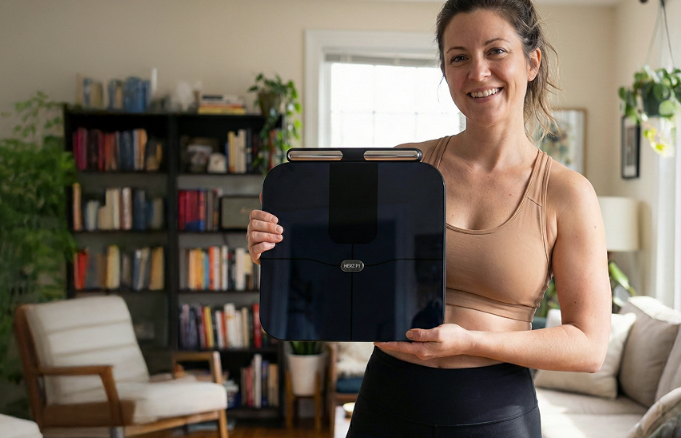
Official Website https://www.offerplox.com/e-commerce/herz-p1-smart-scale-review/ Adaptable Across Life Stages The Herz P1 Buy is designed to remain relevant as users move through different stages of life. Its flexibility allows it to support changing goals and priorities. Young adults may use it to establish healthy routines. Busy professionals can rely on it for consistent monitoring despite...
As commercial enterprises, civil agencies, and modern defense sectors increasingly prioritize real-time Earth observation and ultra-fast orbital data links, a massive technological transformation is sweeping through the global space economy. This rapid expansion is substantiated by Business Market Insights, which highlights that the global Optical Satellite Market is on track to record a 15.10%...

Explore the World and Learn the Basics Key Takeaway: Understanding the game world makes progression much easier. Old School RuneScape is known for its massive open world filled with OSRS gold cities, dungeons, and hidden opportunities. New players should spend time learning important locations, transportation methods, and key NPCs. Some essential areas include: LumbridgeVarrockFaladorDraynor...

Maintaining optimal blood sugar health is essential for overall wellness, energy, and long-term metabolic stability. Modern lifestyles, characterized by irregular meals, stress, and high-sugar diets, can create blood sugar fluctuations that affect energy, mood, and general health. GLPro™ is a natural dietary supplement specifically designed to help adults support...
