


How to Recover Deleted Files from Windows Recycle Bin After Emptying
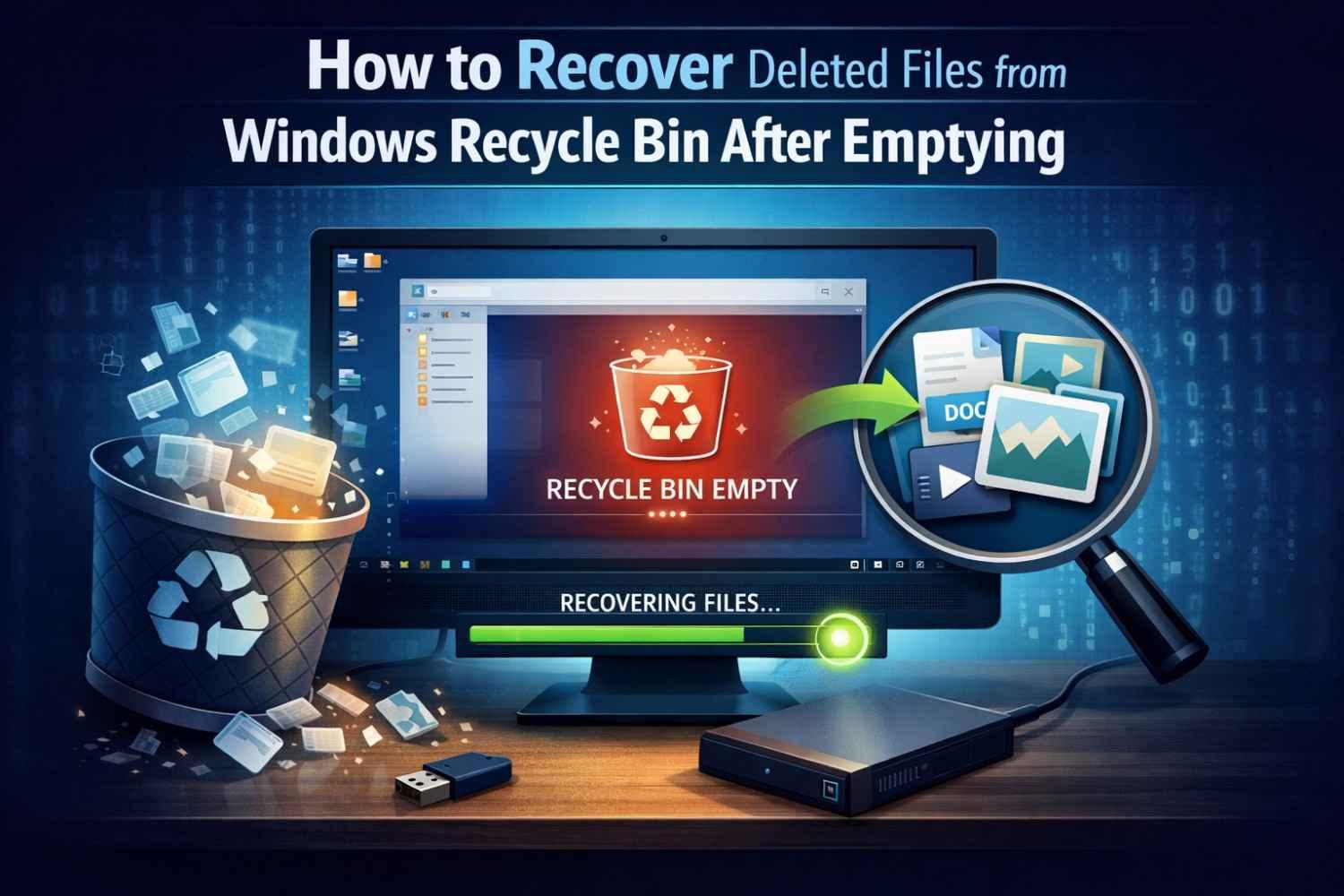
Losing important files after emptying the Windows Recycle Bin is a common problem faced by many computer users. Sometimes files get removed by mistake, or the user empties the Recycle Bin, not expecting there to be anything important in it. In this case, most people believe that the lost files are forever gone.
However, in most cases, the achieved data is not immediately erased from the system. Instead, Windows only deletes the file reference and declares the storage space free for new data. If no new data has been stored in this place yet, the deleted files can be recovered. By relying on the Windows built-in recovery features, backup file options, or data recovery utilities, a user can often restore lost files successfully.
We will also tell you why it happens, the Recycle Bin lost data, and what the most correct methods of Recycle Bin file recovery are.
Can Deleted Files Be Restored After the Recycle Bin Is Emptied?
Yes, it is possible to recover files after emptying the recycle bin. This means that when files are deleted, Windows only deletes their index.
Understanding What Occurs After Emptying the Recycle Bin
To empty the Recycle Bin, the system executes the following functions
- Deletes entries from files in the Windows operating system.
- It also frees up disk space used by those files.
- Permits the new data to overwrite the storage area.
- Has no access to the original files to be deleted physically in the future;
Are Deleted Files Permanently Removed
Deleted Files Are Not Instantly Destroyed. Instead:
- The file path and reference are removed
- The data remains on the drive for a short time.
- Deleted files can be recovered until the disk space is reused.
- The recovery success rate improves with quick action.
Common Reasons Files Get Deleted from the Recycle Bin
Files may disappear from the Recycle Bin for several reasons.
Accidentally Emptying the Recycle Bin
This is the most common situation. It happens when:
- Users clear the Recycle Bin without checking the items.
- Important files were already in the bin.
- Multiple files were deleted simultaneously.
Using Shift + Delete
When Shift + Delete is used:
- Files do not pass through the Recycle Bin at all.
- The file entry is removed directly by Windows.
- It becomes difficult (but not impossible) to recover the deleted data.
System Cleanup or Disk Errors
Sometimes files are removed automatically due to:
- Disk cleanup tools removing temporary files
- System optimization software.
- Hard drive errors or corruption.
Best Methods to Recover Deleted Files from an Emptied Recycle Bin
Several recovery methods can help retrieve lost files.
Method 1: Restore Files Using File History
If File History was enabled earlier, one may easily perform file recovery.
Steps include:
- Navigate to the folder where the file was first saved.
- Right-click inside the folder.
- Click on Restore previous versions.
- Choose the appropriate backup version.
- Restore the file to its original place.
Method 2: Recover Files Using Windows Backup
If a Windows backup exists, you can restore files by:
- Opening Control Panel
- Backup and Restore Options
- Clicking Restoring my files.
- Browsing the backup storage
- Retrieving the needed files
Method 3: Use a Data Recovery Tool
If there are no backups, a professional recovery application can look through the drive and recover the deleted information. The Softaken Data Recovery Software is one trustworthy option that lets users get back deleted, lost, and even formatted files from Windows-based storage devices.
Method 4: Restore Previous Versions in Windows
Windows may automatically keep older folder versions. To restore them:
- Go to the original Folder location.
- Right-click on the folder.
- Select Restore previous versions.
- Choose the right version.
- Click Restore.
How to Recover Deleted Files Using a Data Recovery Tool
Recovery tools scan the storage drive and identify files that still exist in hidden sectors.
Features of a Good Data Recovery Tool
A good recovery solution usually provides:
- Deep scanning to detect files.
- File formats recovery in numbers.
- Concise and easy-to-use interface.
- File preview before recovery.
Steps to Recover Deleted Files Using the Tool
Basic recovery steps generally include:
- Install a recovery application.
- Choose the drive on which the files were deleted.
- Start a full or deep scan
- View the recovered files before restoring them.
- Select the files you want to restore.
- Save them in another destination.
Supported File Types You Can Recover
Most modern recovery tools can restore:
- Documents (DOC, DOCX, PDF, XLS)
- Images (JPG, PNG, GIF)
- Videos (MP4, AVI, MOV)
- Audio files (MP3, WAV)
- Archive files (ZIP, RAR)
Tips to Increase the Chances of File Recovery
Following a few precautions can increase the success rate for recovery.
Stop Using the Drive Immediately
After data loss:
- Avoid storing new data on that drive.
- To prevent overwriting of deleted data
- Start recovery works as soon as possible.
Avoid Installing New Programs
The same drive for software installation may
- Overwrite sectors of deleted files
- Lower chances for file recovery.
- Destroy any recoverable data forever.
Choose a Reliable Recovery Tool
For best results:
- Use trusted recovery software.
- Choose tools with deep scanning capability
- Have multiple file formats supported.
Conclusion
The restoration of deleted files from an emptied Recycle Bin is possible in most cases with the right recovery method upon prompt reaction. When backups are available, built-in Windows tools such as File History, Backup, and Previous Versions will come in handy to restore lost data. However, if backups are missing, employing a reliable and sensible data recovery method can help enhance one’s chances of getting deleted files before they get overwritten.
الأقسام
إقرأ المزيد
Health insurance is one of those financial decisions people love to postpone. In your 20s, you feel invincible. In your 30s, you're busy building a career and a family. By your 40s and 50s, you finally start paying attention — often after a health scare forces the issue. But here's the truth: the best age to buy health insurance is always earlier than you think. If you've been searching...

The Philippines has seen strong growth in small and medium enterprises (SMEs), making up about 99% of registered businesses. As customer demand for fast deliveries increases, SMEs need reliable delivery solutions. This has created a growing demand for a Lalamove clone app that offers quick deliveries, hyperlocal coverage, and cost-effective operations. In this blog, we'll explore why...

The Europe Slip Resistant Shoes Market continues to evolve as organizations strengthen their commitment to workplace safety and regulatory compliance. Slip-resistant footwear has become increasingly important across industries where employees are exposed to wet, oily, or hazardous surfaces. Employers recognize that investing in proper footwear not only protects workers but also reduces costs...
In der Entwicklung von Genshin Impact zeichnen Insider zunehmend ein Bild zukünftiger Inhalte und Charaktere. Besonders im Fokus stehen dabei Helden, die in kommenden Versionen eingeführt werden sollen, darunter auch den legendären Drachen Durin. Durin, einst ein Satelliten-Alchemist namens Albedo und Vorbote des Wanderers, wird voraussichtlich als legendärer Begleiter...
The unprecedented surge in cloud adoption and the continuous proliferation of enterprise-grade connectivity applications have catalyzed significant Ai In Fintech Market Growth over the past several years. As organizations worldwide embrace a connectivity-first strategy, the complexity of managing environmental and social data across public, private, and hybrid environments has grown...
