


How to Check the Outlook OST File Location on a Windows Computer
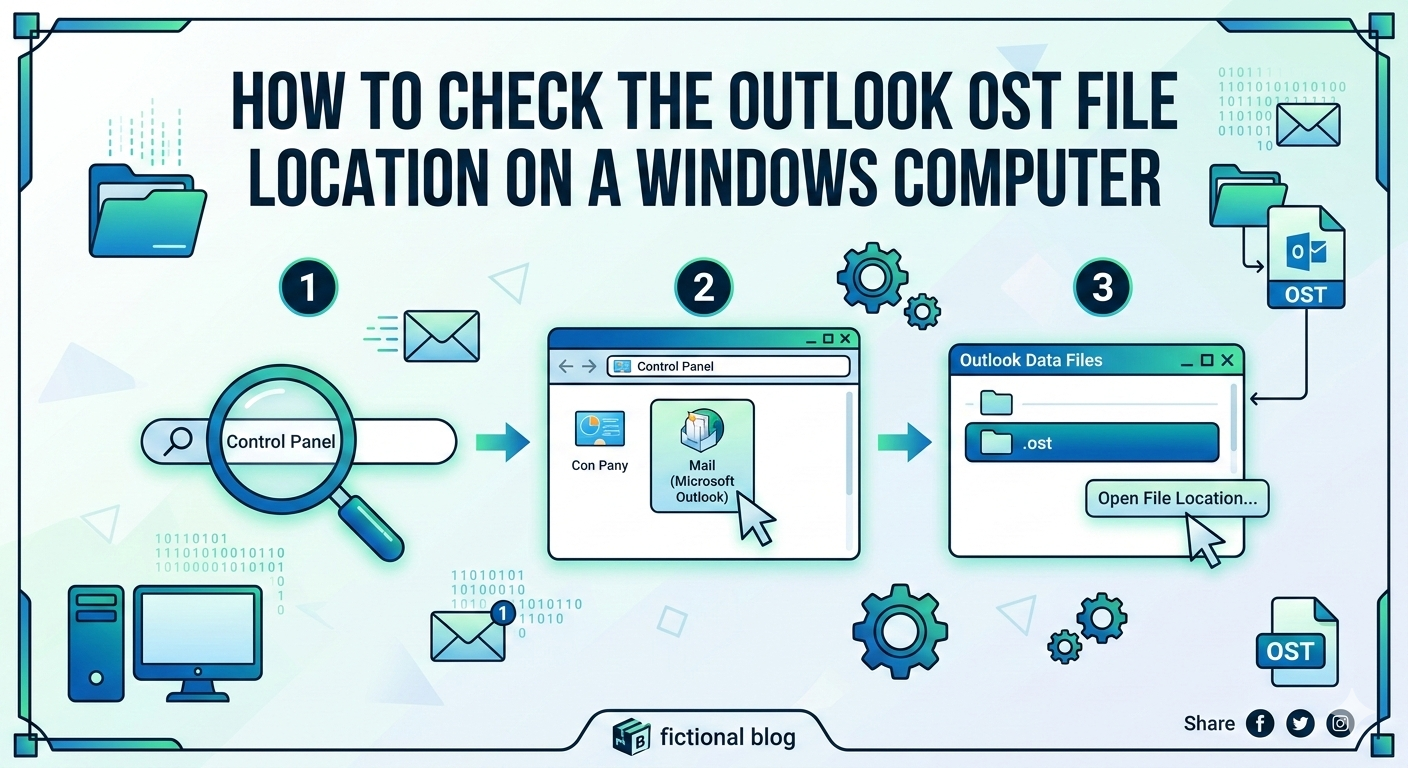
Most user use Outlook as their email software, and most businesses choose to utilize Microsoft Outlook. Outlook keeps our clients' data safe, which means that user databases are always safe. It lets users store all of their email databases in the OST and PST formats. Users need to convert an OST file to a PST file because of problems that aren't clear and other needs. Most users don't know where OST files are really saved, so they can't find the OST file location. We will learn a lot about OST files in this post, including where to discover them and how to fix them if they get corrupted.
What is an OST File?
Outlook uses an OST (Offline Storage Table) to keep emails, calendars, and other Outlook items. OST files are also important for business because they let users access and convert their Outlook online. When users use Outlook offline and make changes, OST files save those modifications and still work when they connect to the Internet.
Why do users need to know where the Outlook OST file is?
There are a few typical reasons why users need to know where their Outlook OST files are located. Here are a few:
- If the OST file is damaged, and the user wishes to retrieve it.
- If the user's OST file gets too big and takes longer to load and open, the user needs to make it smaller.
- Need to move data from one computer or account to another to use it.
- For whatever personal or business reason, you need to shift data to another email client.
The Actual Location of the Outlook OST File?
Different versions of Microsoft Outlook store the OST file in different places. Use the table to find out where your OST file is stored based on your version of Outlook:
Outlook Version, Default OST File Location
Outlook 2019/2016/2013C:\Users\Username\AppData\Local\Microsoft\Outlook\
Outlook 2010 C:\Users\Username\AppData\Local\Microsoft\Outlook\
Outlook 2007 C:\Users\Username\AppData\Local\Microsoft\Outlook\
Outlook 2003 C:\Documents and Settings\Username\Local Settings\Application Data\Microsoft\Outlook\
- Put your real Windows user name in lieu of "Username."
- By default, the AppData folder is hidden. To get to it, you may need to turn on "Show hidden files and folders" in Windows settings.
- When you use Outlook with Exchange, IMAP, or Microsoft 365 accounts to keep a copy of your mailbox data that is synced with the internet, it creates OST files.
- You may also check the precise path of the OST file by going to Outlook Account Settings > Data Files if you can't find it in the default location.
How to Fix Damaged OST Files?
If your OST file is broken and you want to get it back without losing any data, the best option is to use. There are a lot of companies on the web that can help you manage OST files, but TrustVare OST to PST Converter is the best. Also, most experts suggest that other users utilize this solution as well. The GUI of this powerful solution is so easy that anyone can use it to simply recover and convert OST files. It can get back OST files that are very damaged, corrupted, or hard to get to without making any changes.
Wrap It Up:
This is all about the OST file and where to find it on your computer. I hope now you learn completely how to find the OST file Location. And also know how to fix the corrupted, inaccessible, and damaged OST files without facing any issues.
Categorieën
Read More
According to the latest report published by Data Bridge Market Research, the Asia-Pacific Video Measuring System Market The Asia-Pacific video measuring system market size was valued at USD 190.60 Million in 2025 and is expected to reach USD 368.77 Million by 2033, at a CAGR of 8.6% during the forecast period In this persuasive Asia-Pacific...

In today’s digital-first world, most patients search online before choosing a dentist. Whether they need a routine checkup, cosmetic dentistry, or emergency dental care, they usually turn to Google to find the best clinic nearby. If your practice is not visible in search results, you are likely missing out on a large number of potential patients. This is where Dental SEO services play a...
Sell Football World Cup 2026 Tickets: The seizure of more than 66 000 jerseys highlights the scale of the issue. Investigators stated that organized groups often target periods of high demand. Their methods can vary across regions and markets. In many discussions, FIFA World Cup 2026 has been identified as a major factor shaping enforcement priorities. Rising Enforcement Before FIFA World...

According to the latest report published by Data Bridge Market Research, the Europe Core Materials Market CAGR Value The Europe core materials market size was valued at USD 1.15 billion in 2025 and is expected to reach USD 3.09 billion by 2033, at a CAGR of 13.16% during the forecast period An influential Europe Core Materials...
Executive Summary North America Breast Reconstruction Market : Data Bridge Market Research analyses that the North America breast reconstruction market which is USD 926.28 million in 2022, is expected to reach USD 1805.42 million by 2030, at a CAGR of 8.7% during the forecast period 2023 to 2030. Today’s businesses choose the market research report solution such as North America...