Understanding the Relationship Between JAVA_HOME and /usr/bin/java in Linux
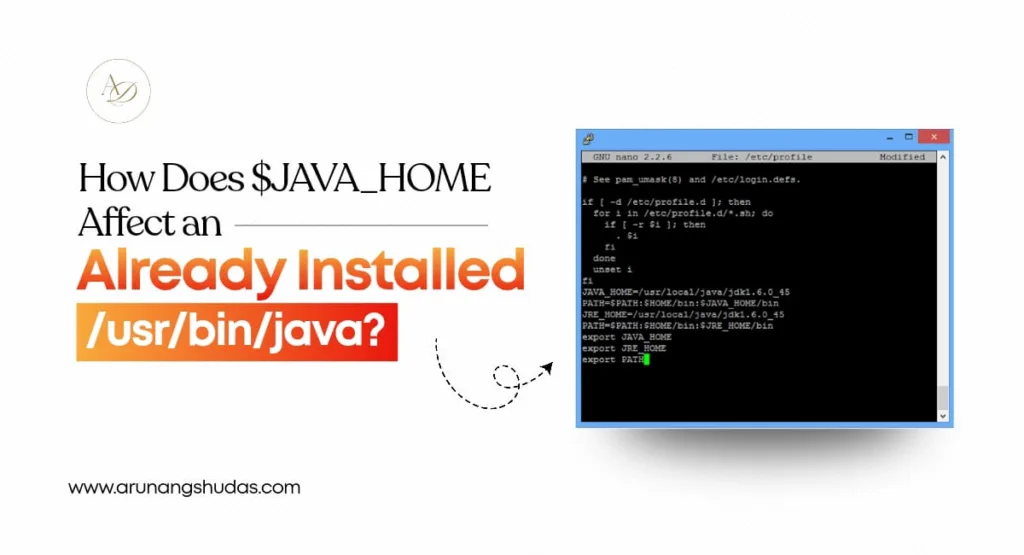
When configuring Java on a Linux or Unix-based system, developers frequently encounter two important components: JAVA_HOME and /usr/bin/java. While both are related to how Java runs on a system, they serve different purposes. Misunderstanding their roles can lead to configuration issues, especially when working with development tools or multiple Java versions.
In this article, we’ll explore what JAVA_HOME and /usr/bin/java are, how they interact, and how to configure them properly for a stable Java development environment.
What is JAVA_HOME?
JAVA_HOME is an environment variable that points to the root directory of a Java installation, typically a JDK (Java Development Kit).
For example:
This variable helps applications and development tools locate Java binaries such as:
-
java -
javac -
jar
Many build tools and frameworks rely on JAVA_HOME to determine which Java version should be used.
Examples of tools that depend on JAVA_HOME include:
-
Apache Maven
-
Gradle
-
Apache Tomcat
-
Jenkins
If JAVA_HOME is not set correctly, these tools may fail to run even if Java appears to work in the terminal.
What is /usr/bin/java?
/usr/bin/java is usually the system-wide Java executable path available through the Linux PATH variable.
When you run the command:
The system searches through directories listed in the PATH environment variable and executes the first matching java command it finds. On most Linux systems, this points to:
However, /usr/bin/java is typically not the actual Java binary. Instead, it is a symbolic link that points to the real Java executable located inside the Java installation directory.
You can verify this using:
This command will reveal the actual path to the Java binary.
How JAVA_HOME and /usr/bin/java Work Together
Although both are connected to Java execution, they operate in different ways.
System-Level Java Execution
The /usr/bin/java path is used when running Java commands directly from the terminal. It is controlled by the system PATH configuration and determines which Java version runs by default.
Application-Level Java Configuration
Many Java-based tools ignore the system path and instead rely on JAVA_HOME. These tools use the directory specified by JAVA_HOME to locate the correct Java runtime.
This means that:
-
/usr/bin/javadetermines the default system Java -
JAVA_HOMEdetermines the Java version used by certain applications
Problems That Occur When JAVA_HOME Is Misconfigured
A common issue occurs when JAVA_HOME is incorrectly set.
For example:
This is incorrect because JAVA_HOME must point to the Java installation directory, not the executable file.
The correct configuration should look like:
Setting JAVA_HOME incorrectly can cause problems such as:
-
Maven build failures
-
Gradle configuration errors
-
Application server startup issues
Working With Multiple Java Versions
Developers often install multiple Java versions on the same system. For example:
-
Java 8 for legacy applications
-
Java 11 for enterprise applications
-
Java 17 for modern development
In such cases:
-
/usr/bin/javamay point to the system default version -
JAVA_HOMEcan be set to a specific version for a project
This flexibility allows developers to switch between Java versions without modifying the entire system configuration.
How to Verify Your Java Setup
To ensure everything is configured correctly, you can run the following commands:
Check the JAVA_HOME variable:
Find the Java executable:
Check the installed Java version:
These commands help confirm whether the system and environment variables are aligned.
Best Practices for Java Environment Configuration
To avoid common Java configuration issues, follow these best practices:
-
Always set
JAVA_HOMEto the root directory of the JDK -
Add
$JAVA_HOME/binto the PATH variable -
Avoid pointing
JAVA_HOMEto executable files -
Verify symbolic links in
/usr/bin -
Restart your terminal after updating environment variables
Following these practices ensures consistent behavior across Java applications and development tools.
Conclusion
JAVA_HOME and /usr/bin/java are both essential parts of the Java environment on Linux systems, but they serve different purposes. The /usr/bin/java path determines the default Java runtime for system commands, while JAVA_HOME helps development tools and applications locate the correct Java installation.
Understanding how these components interact allows developers to manage Java environments more effectively, especially when working with multiple Java versions or complex build systems.
Proper configuration of JAVA_HOME and PATH ensures smoother development workflows and prevents common runtime issues.
Catégories
Lire la suite
The MAC 1 weed strain, also known as MAC 1 strain, Miracle Alien Cookies, or simply MAC1 weed, has quickly become a favourite among UK cannabis enthusiasts. This premium hybrid delivers a perfect balance of uplifting cerebral effects and relaxing body sensations, making it incredibly versatile for both daytime and evening use. In this guide, we’ll dive deep into everything you need to...

Benefits of Using Certification Exam Preparation Material Certification exams help people grow in their careers. They help you get better jobs. They also help you earn more money. Many students want to pass the D-ECS-DY-23 exam on the first attempt. This exam is offered by Dell EMC. However, exam preparation can feel difficult. There are many books to read and many topics to cover. This is why...

According to a new report from Intel Market Research, the global Rapid Thermal Annealer Market was valued at USD 667 million in 2024 and is projected to reach USD 970 million by 2031, growing at a robust CAGR of 5.6% during the forecast period. The market growth is primarily driven by increasing demand for advanced semiconductor devices and continuous miniaturization of electronic components....
Technology is evolving rapidly, and cloud computing has become one of the most important innovations in the digital world. From storing photos to running large business applications, cloud computing is used everywhere today. In 2026, it has become even more advanced, helping companies and individuals work faster, smarter, and more efficiently. If you are new to this topic, this guide will give...

The latest business intelligence report released by Polaris Market Research on White Cement Market Share, Size, Trends, Industry Analysis Report, By Product (While Portland Cement, While Masonry Cement, Others), By Application (Residential, Commercial, Others), By Region, And Segment Forecasts, 2024 - 2032. It covers the in-depth knowledge of the White Cement Market Share that...