


Connect Joy-Cons to Ryujinx (Complete Step-by-Step Guide)
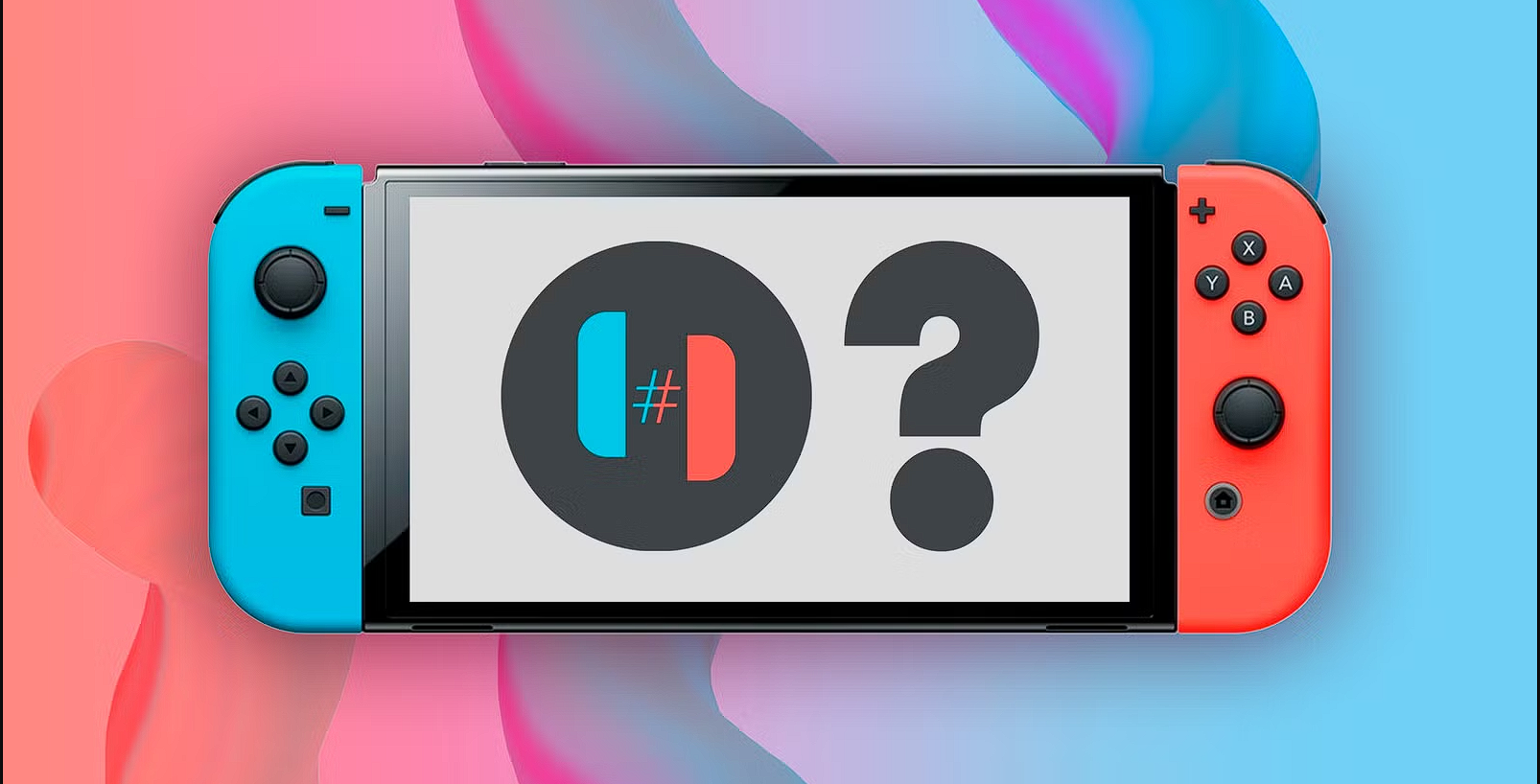
How to Connect Joy-Cons to Ryujinx
If you’re diving into Nintendo Switch emulation with Ryujinx, there’s one thing that instantly elevates your experience—using actual Joy-Cons. Sure, a keyboard works, and even generic controllers get the job done, but nothing beats the authentic feel of Joy-Cons in your hands.
The good news? Connecting Joy-Cons to Ryujinx is totally doable. The slightly tricky part is that it’s not always a plug-and-play situation. That’s where tools like BetterJoy come into play, acting as the bridge between your controllers and your PC.
In this guide, we’ll walk through everything you need—from setup to troubleshooting—so you can get your Joy-Cons working smoothly with Ryujinx.
Why You Need BetterJoy for Joy-Cons
Before we jump into the setup, let’s quickly talk about why BetterJoy is essential. Windows doesn’t natively handle Joy-Cons perfectly, especially when it comes to motion controls and pairing both controllers as a single unit.
BetterJoy solves this by translating Joy-Con inputs into something your PC (and Ryujinx) can understand. It also enables features like gyro controls, button mapping, and stable connectivity.
If you’re new to the tool, you can explore more about Better Joy or follow a detailed breakdown on how to use BetterJoy to get familiar with its features.
Step 1: Download and Install BetterJoy
The first step is getting the right software. Head over to the official BetterJoy Download page and grab the latest version for Windows.
Once downloaded, extract the files into a folder where you can easily access them. There’s no complicated installation process—just make sure all files stay together in the same directory.
After extraction, run BetterJoy as administrator. This ensures it has the permissions needed to detect and manage your Joy-Cons properly.
Step 2: Pair Your Joy-Cons with Your PC
Now it’s time to connect your controllers. Joy-Cons use Bluetooth, so your PC needs to have Bluetooth enabled.
Hold down the small sync button on the side of each Joy-Con until the LED lights start flashing. Then, go to your Windows Bluetooth settings and look for available devices. You should see entries like “Joy-Con (L)” and “Joy-Con (R).”
Pair both controllers one by one. Once connected, BetterJoy should automatically detect them. If everything is working correctly, you’ll see them listed in the BetterJoy interface.
Step 3: Configure Joy-Cons in BetterJoy
With your Joy-Cons connected, the next step is configuring them inside BetterJoy. This is where you can choose whether to use them individually or combine them into a single controller.
For most Ryujinx setups, combining them into one controller is the best option. It mimics the standard Switch controller layout and makes gameplay much smoother.
You can also enable motion controls, adjust sensitivity, and tweak button mappings. Take a few minutes here to fine-tune your setup—it makes a big difference later on.
Step 4: Set Up Controllers in Ryujinx
Now that BetterJoy is handling your Joy-Cons, it’s time to connect them to Ryujinx.
Open Ryujinx and go to the input settings. You should see a controller option that corresponds to BetterJoy (usually detected as an XInput device).
Select it, then map your buttons according to your preference. If you’ve already configured everything in BetterJoy, this step should be quick and straightforward.
Once done, save your settings and launch a game to test everything out.
Step 5: Testing and Fine-Tuning
At this stage, your Joy-Cons should be fully functional—but don’t skip testing. Load into a game and check if all inputs are responding correctly.
Pay special attention to motion controls if you’re using them. Some games rely heavily on gyro input, so you may need to tweak sensitivity settings in BetterJoy for the best experience.
If something feels off, go back and adjust your configuration. A little trial and error here can make your gameplay feel incredibly smooth.
Common Issues and Fixes
Even with the right setup, you might run into a few hiccups. Don’t worry—most of them are easy to fix.
If your Joy-Cons aren’t connecting, double-check your Bluetooth settings and make sure no other device is interfering. Restarting BetterJoy can also help refresh the connection.
If Ryujinx isn’t detecting your controller, ensure BetterJoy is running before launching the emulator. Sometimes the order of startup matters more than you’d expect.
For lag or input delay, try moving closer to your PC or reducing Bluetooth interference. Updating your Bluetooth drivers can also improve performance.
Tips for the Best Experience
To really enjoy using Joy-Cons with Ryujinx, a few small tips can go a long way.
First, keep BetterJoy updated. New versions often include bug fixes and improved compatibility with emulators.
Second, avoid running too many background applications while gaming. This helps maintain stable performance and reduces input lag.
Lastly, experiment with different configurations. Everyone’s setup is a little different, so finding what works best for you is part of the process.
Final Thoughts
Connecting Joy-Cons to Ryujinx might seem a bit technical at first, but once you’ve done it, it becomes second nature. With the help of BetterJoy, you can enjoy a much more authentic and immersive gaming experience.
From pairing your controllers to fine-tuning your settings, every step brings you closer to that console-like feel on your PC. And honestly, once everything is working perfectly, it’s absolutely worth it.
Категории
Больше
According to the latest report published by Data Bridge Market Research, the Floating Wind Turbine Market Global floating wind turbine market size was valued at USD 2.20 billion in 2024 and is projected to reach USD 44.19 billion by 2032, with a CAGR of 45.50% during the forecast period of 2025 to 2032. The winning Floating Wind Turbine Market report brings into focus the new highs...

According to the latest report published by Data Bridge Market Research, the Natural Spirits Market Data Bridge Market Research analyses that the natural spirits market which was growing at a value of 16.03 billion in 2021 and is expected to reach the value of USD 50.77 billion by 2029, at a CAGR of 15.50% during the forecast period of 2022-2029. This Natural Spirits...
When it comes to producing high-quality video content, whether for YouTube, commercial projects, documentaries, or personal events, choosing the right equipment can make all the difference. For many content creators, both seasoned professionals and eager beginners, scheimpflug has become a go-to solution. But why are so many turning to rental services instead of buying their own gear? In this...

Sometimes people think sharing business updates needs big writing skills, but honestly, it does not work like that in daily practice. Most updates are simple, just written in a way that people can read fast and understand without thinking too much. That is where media releases come into play; they help pass information without making things heavy. You do not have to sound flawless here, just...

Đăng Ký MKSport mang đến một thế giới cá cược hiện đại, tiện lợi và đầy hấp dẫn cho người chơi. Với hệ thống ổn định, giao diện thân thiện và dịch vụ chuyên nghiệp, người dùng có thể tận hưởng mọi trận đấu, mọi cơ hội chiến thắng một cách trọn vẹn nhất. Tuy nhiên, để đảm bảo trải nghiệm luôn mượt mà...