UNLOCKING THE HIDDEN POTENTIAL OF WINDOWS WITH VIVETOOL
ULTIMATE GUIDE TO
In this comprehensive guide, we will explore the ecosystem of ViveTool, how it interacts with the latest Windows updates, and how you can use it to stay ahead of the curve
For power users and Windows enthusiasts, the thrill of discovering “hidden” features is a core part of the operating system experience. Microsoft frequently ships versions of Windows that contain experimental features, dormant UI elements, and unfinished tools that are locked behind internal flags. Traditionally, accessing these required complex registry edits or waiting months for a public rollout. However, with the emergence of ViveTool, the community has gained a powerful way to take control of their OS.
In this comprehensive guide, we will explore the ecosystem of ViveTool, how it interacts with the latest Windows updates, and how you can use it to stay ahead of the curve.
What is ViveTool?
ViveTool is an open-source C# library and console executable that allows users to interact with the “Feature Control” system in Windows. Every modern version of Windows uses a system called “Velocity” to manage the rollout of features. By using specific identifiers, ViveTool can force-enable or disable these features at will.
If you have ever seen a tech blog showcase a new ViveTool search box design or a taskbar layout that isn’t on your PC yet, they are likely using this utility to bypass Microsoft’s gradual rollout phase.
Getting Started: The ViveTool Essentials
Before diving into advanced configurations, it is vital to understand the basic syntax of the tool. ViveTool is a command-line utility, which means you will be performing most of your actions through Command Prompt or PowerShell with administrative privileges.
The Core Commands
The most important aspect of the utility is understanding ViveTool enable ID structures. Every hidden feature in Windows is assigned a unique 8-digit identification number. To turn a feature on, you use the vivetool /enable /id:XXXXXXXX command.
Unlocking New Horizons: Copilot and AI Integration
One of the most popular uses for this utility in recent months has been the early activation of AI features. While Microsoft has been rolling out its AI assistant globally, many regions and versions were left behind initially.
Through the power of ViveTool enabling Copilot, users were able to experience the future of AI-driven computing long before the official update hit their systems. This isn’t just limited to the latest OS; enthusiasts have even found ways of introducing ViveTool Copilot to experimental builds of Windows 10, bringing modern AI capabilities to older hardware.
For a deeper look at the evolution of these tools, you can explore the differences between ViveTool Copilot for Windows 10 and the newer iterations like ViveTool Copilot 2.
Advanced Features and Efficiency
ViveTool isn’t just about “turning on” shiny new buttons; it’s about optimizing the workflow of your operating system.
Exploring ViveTool Task Manager
Microsoft often tests various iterations of the system monitor. By exploring ViveTool Task Manager flags, users can enable modern “Eco Mode” features or the revamped search filtering within the processes tab that might not be active by default on their current build.
The AddConfig Feature
One of the more technical aspects of the software is unlocking efficiency with ViveTools AddConfig feature. This allows power users to import entire configuration files to batch-enable a series of features at once, which is incredibly useful for IT professionals setting up customized workstations.
Troubleshooting and User Experience
While enabling hidden features is exciting, it does come with risks. Because these features are “hidden” for a reason — often because they are unfinished — system instability can occur.
Before using the tool, it is highly recommended to perform a tool VIP experience review by checking community forums to see if a specific ID is known to cause boot loops or graphical glitches. For those looking for broader utility support beyond just feature flags, exploring Vice Tool for PC can provide additional system-level optimizations that complement the ViveTool experience.
Conclusion: Why ViveTool is a Must-Have
The best features of ViveTool lie in the freedom it grants the user. It transforms Windows from a “closed box” experience into a sandbox where you can decide exactly which features are ready for your daily workflow.
Whether you are trying to force-enable the latest ViveTool Copilot features or simply want to experiment with the ViveTool search box variants, this utility is the ultimate key to the Windows backend. Just remember to always create a system restore point, keep your ViveTool enable ID list updated, and enjoy the cutting edge of modern computing.
Categorias
Leia mais
The ride-hailing industry has transformed how people travel in cities across the world. What once depended on traditional taxi services has now evolved into a technology-driven ecosystem where passengers can book rides instantly through mobile applications. This shift has created massive opportunities for entrepreneurs who want to build transportation platforms and enter the on-demand mobility...

"Environmental Friendly and Sustainable Food Market Summary: According to the latest report published by Data Bridge Market Research, the Environmental Friendly and Sustainable Food Market Data Bridge Market Research analyzes that the global environmental friendly and sustainable food market which was USD 117.11 billion in 2022, is expected to reach USD 196.26 billion by 2030, growing...

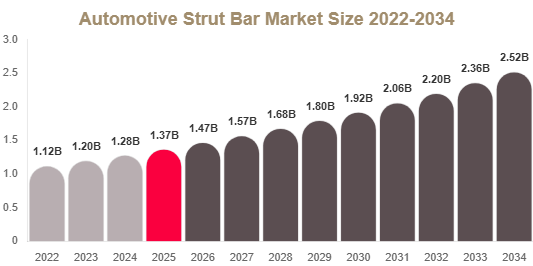
Automotive Strut Bar Market The Automotive Strut Bar Market is witnessing steady growth due to increasing demand for vehicle performance enhancement, rising interest in aftermarket customization, and growing adoption of suspension reinforcement technologies. Automotive strut bars are structural components designed to improve chassis rigidity and reduce body flex during cornering and high-speed...
Streaming Access Guide Accessing "I Want to Eat Your Pancreas" Globally: A Streaming Guide Finding ways to watch critically acclaimed anime films like "I Want to Eat Your Pancreas" can be challenging when you're outside Japan. This touching animated masterpiece, which explores themes of friendship and mortality, has limited availability on international streaming platforms due to regional...

The global Haitian Vetiver Oil Market is witnessing steady growth as demand for natural and sustainable essential oils continues to expand across perfumery, cosmetics, aromatherapy, and wellness industries. According to recent market analysis, the market was valued at USD 43.39 million in 2025 and is projected to reach USD 79.00 million by 2035, growing at...