


@creatoolzofficial
2 Posts
2 Photos
0 Videos
Lives in London
From London
Male
-
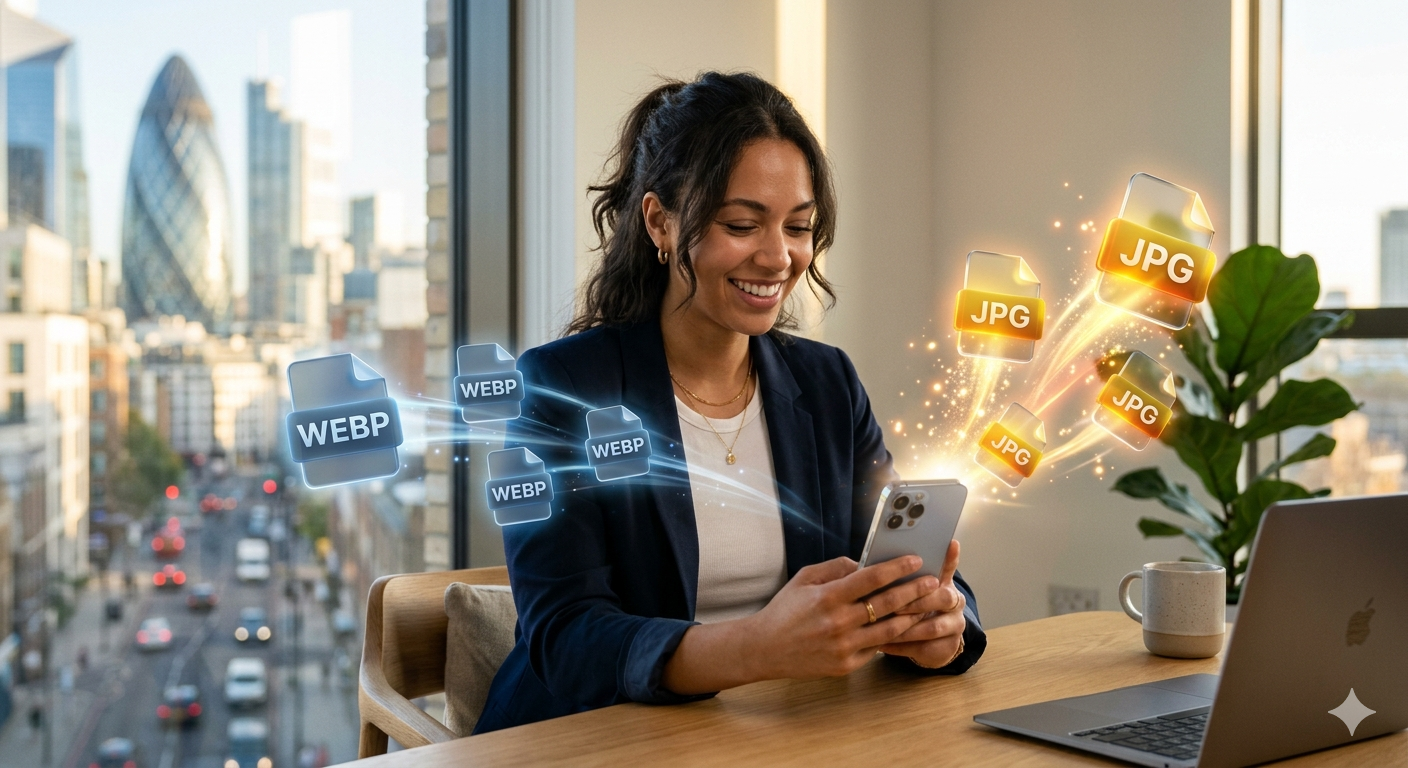
Quick Guide: How to Convert WebP to JPG
WebP is great for the web, but sometimes you just need a standard JPG. Here are the three fastest ways to switch formats:
1. Online Converters (Instant)
The easiest way is to use a free tool like CloudConvert or Ezgif.
Upload your WebP.
Choose JPG as the output.
Download your new file.
2. For Windows (Using Paint)
No internet? No problem.
Right-click your WebP image.
Select Open with > Paint.
Go to File > Save as > JPEG picture.
3. For Mac (Using Preview)
Open the image in Preview.
Go to File > Export.
Select JPEG from the Format dropdown and click Save.
Why JPG?
Universal Support: Works on every app and device.
Easy Editing: Compatible with all photo editors.
Social Media Ready: Perfect for quick uploads.
Note: If you are a web developer, keep your WebP files for better site speed! For everything else, JPG is your best friend.
https://creatoolz.com/webp-to-jpg/
Quick Guide: How to Convert WebP to JPG WebP is great for the web, but sometimes you just need a standard JPG. Here are the three fastest ways to switch formats: 1. Online Converters (Instant) The easiest way is to use a free tool like CloudConvert or Ezgif. Upload your WebP. Choose JPG as the output. Download your new file. 2. For Windows (Using Paint) No internet? No problem. Right-click your WebP image. Select Open with > Paint. Go to File > Save as > JPEG picture. 3. For Mac (Using Preview) Open the image in Preview. Go to File > Export. Select JPEG from the Format dropdown and click Save. Why JPG? Universal Support: Works on every app and device. Easy Editing: Compatible with all photo editors. Social Media Ready: Perfect for quick uploads. Note: If you are a web developer, keep your WebP files for better site speed! For everything else, JPG is your best friend. https://creatoolz.com/webp-to-jpg/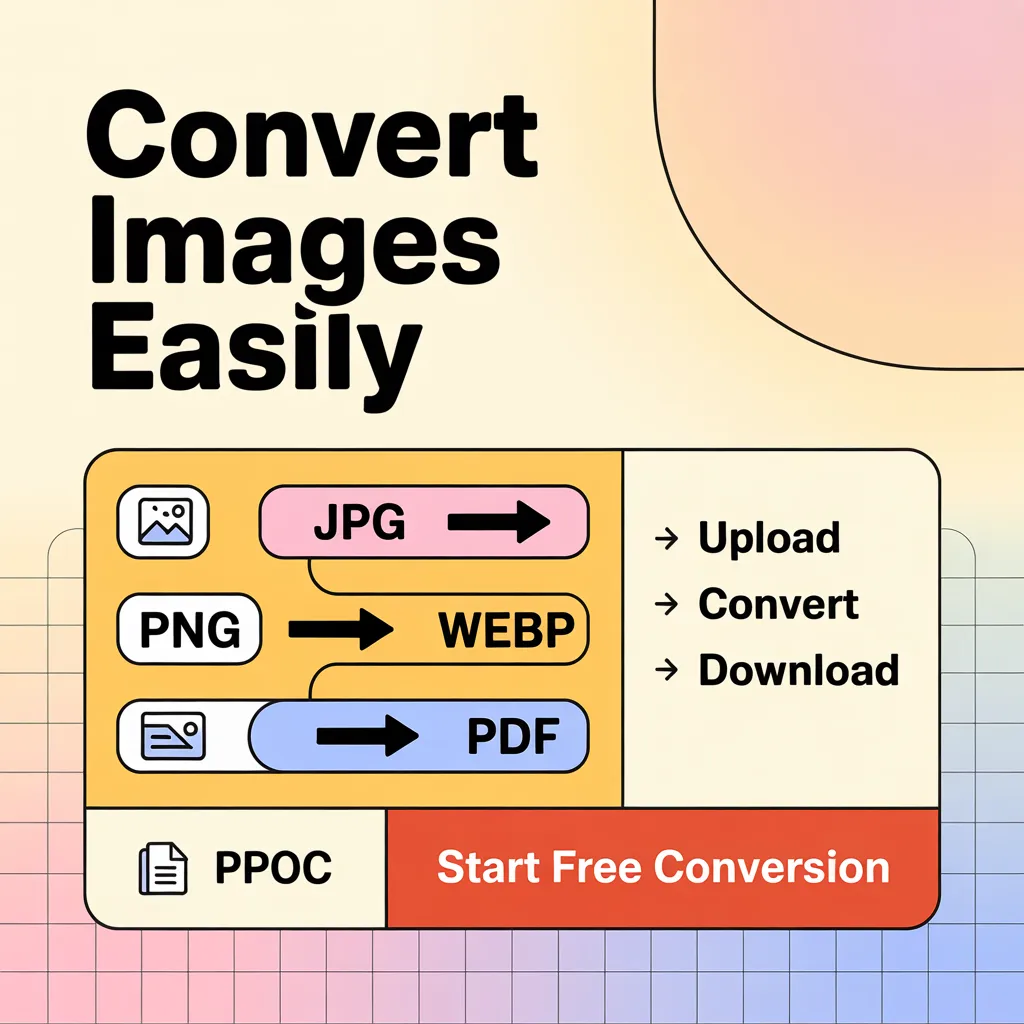 0 Comments ·0 Shares ·829 Views ·0 Reviews
 -
More Stories